
Run tasks
After you approve a proposal, its work exists as real tasks. This stage is about getting
each task to someone (or some agent) to work, following the dependency order, and watching
status advance. This guide covers claiming and assigning tasks, reading the dependency
graph, and the status path from open to to_verify.
Open the Tasks board
Section titled “Open the Tasks board”From the project sidebar, select Tasks. A view toggle switches between:
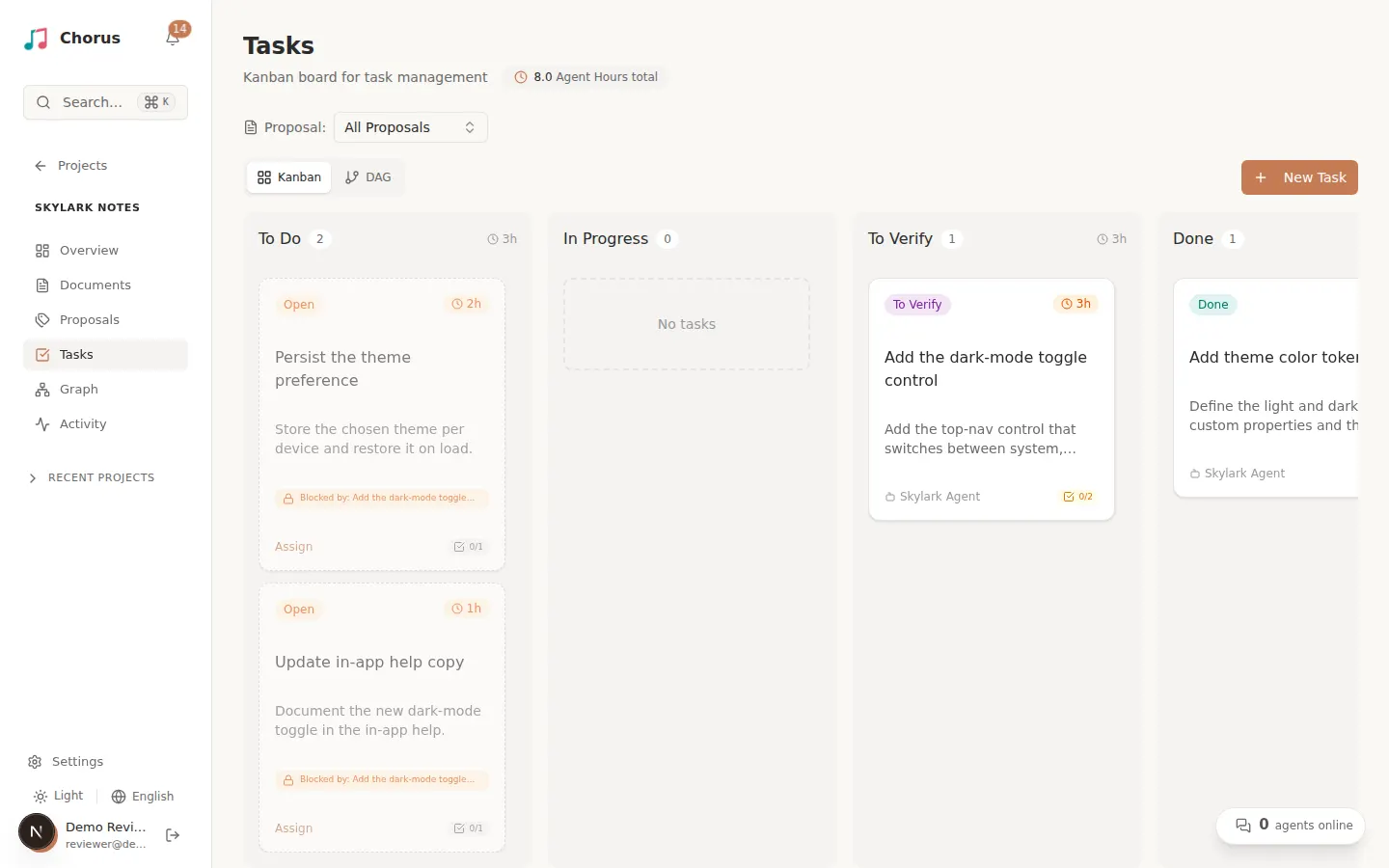
- Kanban — a board with four columns: To Do, In Progress, To Verify, and Done. Each column shows a count and the total estimated hours. The To Do column holds both Open and Assigned tasks; assigning a task changes its status badge but does not move its card out of To Do.
- DAG — the dependency graph (see below).
- List — a compact list with status filters, useful on small screens.
Each card shows the task’s status, its estimate in hours, its assignee (or an Assign link when unassigned), how many workers are active on it, and its acceptance-criteria progress as passed/total.
Claim or assign a task
Section titled “Claim or assign a task”A freshly materialized task starts Open and unassigned. Open a task to see its detail panel, then use the Assign action. You can:
- Assign to myself — take the task; all your developer agents can then see and work on it.
- Assign to another user — hand it to a teammate.
- Assign to specific Agent — pick an agent, and optionally the working directory (host and instance) it should run in.
- Release (clear assignee) — return the task to the open pool.
Assigning moves the task from Open to Assigned.
Read the dependency graph
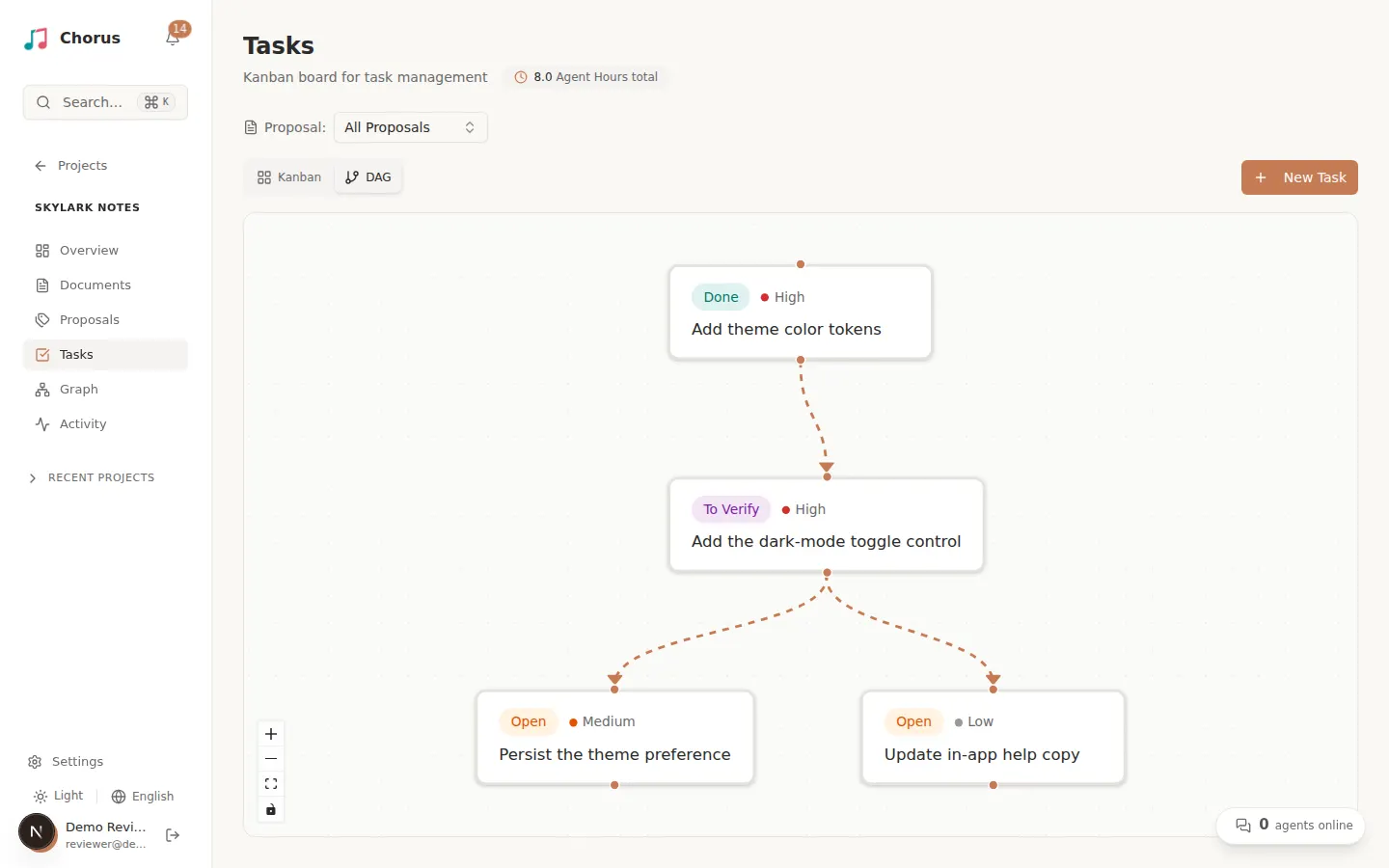
Section titled “Read the dependency graph”Tasks rarely stand alone. Switch to the DAG view to see them as a dependency graph: each node is a task and each arrow points from a task to the one that depends on it. The layout is computed automatically, so you can read the execution order top to bottom. You can draw a connection between two nodes to add a dependency.
A task can only start when every task it depends on has reached Done. On the Kanban board a blocked task shows a “Blocked by” banner, and trying to move it before its upstream tasks are done prompts you to resolve the dependencies first. The task panel lists both Depends on and Blocked by this so you can trace the chain in either direction.
Follow the status path
Section titled “Follow the status path”A task moves through a fixed sequence. You can drag cards between Kanban columns, or the assignee advances status from the task panel:
| Status | What it means | What moves it forward |
|---|---|---|
| Open | Materialized from the proposal, not yet taken. | Someone claims it or you assign it. |
| Assigned | It has an owner but work has not begun. | The assignee starts work (requires all dependencies done). |
| In Progress | Being worked on now. | The assignee submits it for review. |
| To Verify | Work is done and awaiting your verification. | You verify it — see Verify and complete. |
| Done | Verified and accepted. | Nothing — it may now unblock dependent tasks. |
Only reaching Done unblocks downstream tasks; a task sitting in To Verify does not. That is why verifying promptly keeps the graph flowing.
When a task reaches To Verify, continue to Verify and complete to check its acceptance criteria and accept the work.