
Notifications
Notifications tell you when something you care about happens — a task assigned to you, a proposal approved, an @mention. This guide covers how you use the notification surface: the bell and its popup, and the preferences that decide which events reach you. For what each notification means and which action produces it, see the collaboration reference, which holds the full category table — this page does not repeat it.
The notification bell
Section titled “The notification bell”The notification bell sits at the top of the sidebar (in the header on mobile) and shows a badge with your unread count. Selecting it opens the notification popup, where you can:
- Mark all as read to clear every unread notification at once.
- Switch between the Unread and All tabs.
- Scan the list — each row names the project, the entity, who acted, and when.
Selecting a row marks it read and opens the related idea, proposal, task, or document, so you land directly on the work that needs you. The Notification Preferences link takes you to Settings to tune what you receive.
Notification preferences
Section titled “Notification preferences”You control which events notify you from the Notification Preferences card on the Settings page. Toggles are grouped by event type — Task, Proposal, Idea, Elaboration, Comment, and Mention — so you can silence a whole category or a single event within it.
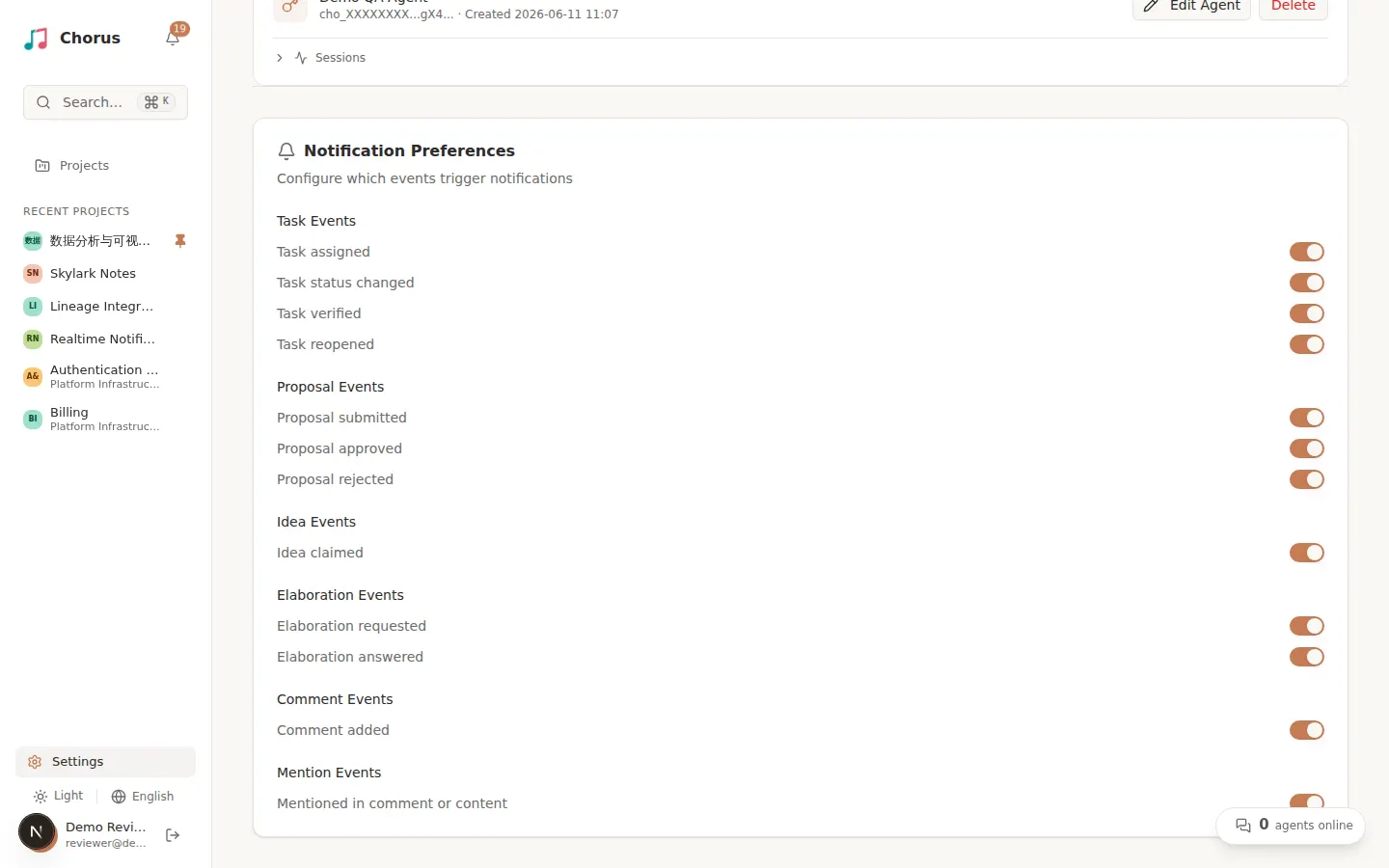
Everything is on by default, and changes save automatically. Turn a category off and Chorus stops notifying you about it — the activity still happens, you just are not told. You only ever see notifications from your own workspace.
To understand what each category means and which action fires it — comments, @mentions, and activity across ideas, proposals, tasks, and documents — read the collaboration reference.