
Work with documents
Documents are the written artifacts of a project — PRDs, specs, designs, notes, and completion reports. Most are created automatically when you approve a proposal, but you can also author one by hand. This guide covers the Documents list, creating and editing a document, version history, how reports surface, and deleting a document.
Browse the Documents list
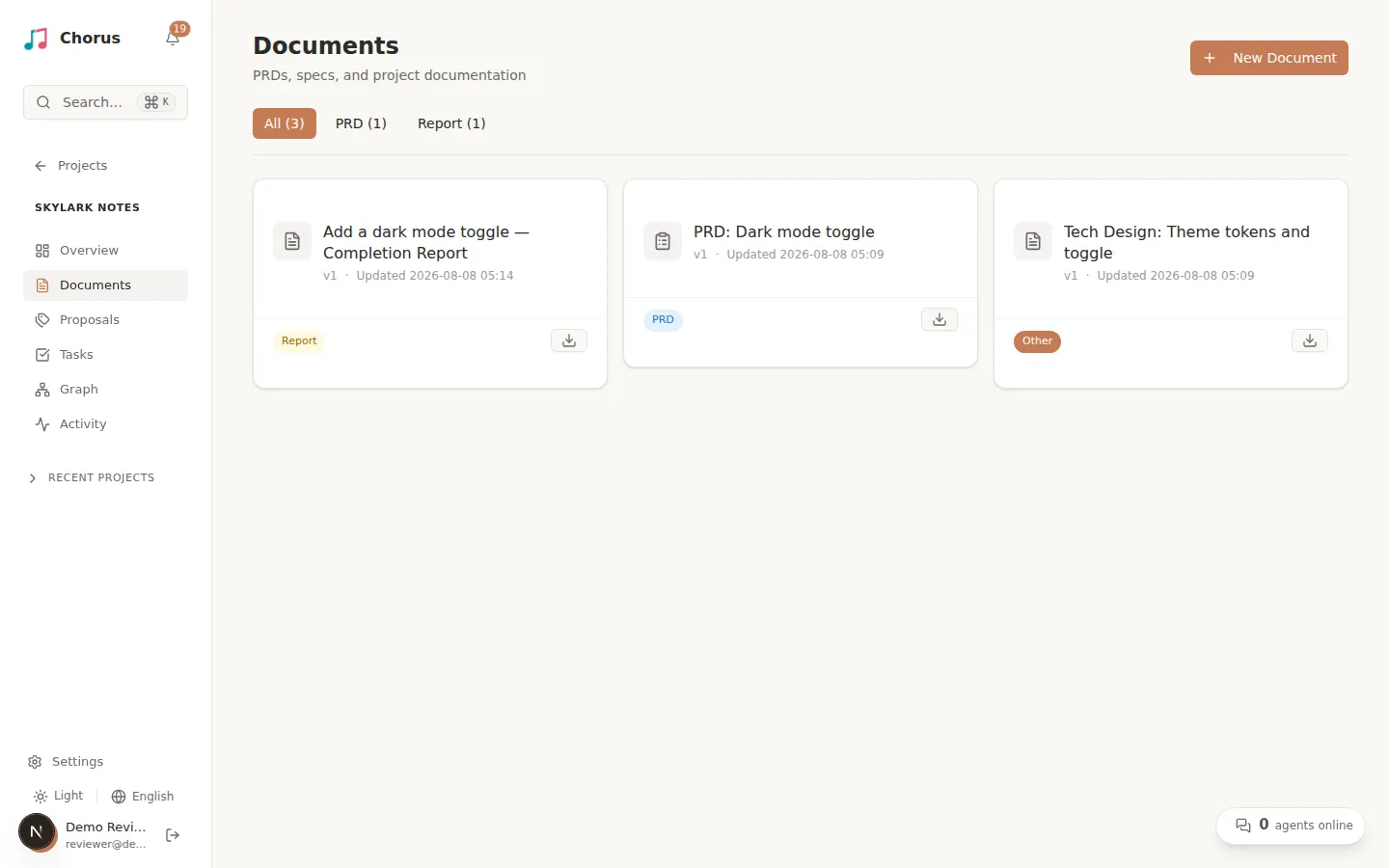
Section titled “Browse the Documents list”From the project sidebar, select Documents to see the project’s documents as a grid of cards, each showing its title, type, and version. A row of filter tabs lets you narrow the list by type — PRD, Spec, Design, Note, Report, and Other — and anything outside those types shows under Other. Use New Document to add one by hand.
Create a document by hand
Section titled “Create a document by hand”Select New Document, give it a title and a type, and optionally attach a Markdown file
(.md, .txt, or .markdown) to seed its content. Creating without a file gives you an empty
document you can fill in from its page.
Read and edit a document
Section titled “Read and edit a document”Open a document to read its Markdown body on its page. Select Edit to change the content and Save Changes to keep it — each save advances the version. A sidebar shows the document’s details, its Source Proposal (with a link to the proposal it came from, when set), and its Version History. Comments below the content let you discuss it.
Metadata at the top of a document
Section titled “Metadata at the top of a document”A document whose Markdown begins with a supported YAML frontmatter block shows those fields in a metadata card above the body. For example:
---title: CSV exportstatus: draft---
## RequirementsUsers can export the current result set.
Use a flat list of key: value pairs, with --- as the very first line and --- or ...
as the closing line. Blank lines and # comments inside the block are allowed. This is not
full YAML support: nested objects, lists, and multiline values are not supported. If the
block is not recognized, Chorus renders the original Markdown instead.
The card changes only how the content is displayed; it does not change the document’s type, workflow state, stored body, or export. Spec-lite uses frontmatter to keep each change document linked to its proposal and persistent document.
How documents and reports surface here
Section titled “How documents and reports surface here”Documents reach this list two ways:
- From approved proposals. When you approve a proposal, each of its document drafts materializes into a real Document that appears here — see Review a proposal for what approval creates.
- By hand. The New Document dialog above.
Reports are documents of type Report. They appear in the list under the Report filter like any other document, and completion reports also aggregate per idea: an idea’s Overview collects its reports so you can read that idea’s outcomes in one place.
Delete a document
Section titled “Delete a document”A user or super-admin can remove a document with the destructive Delete button. Deletion is permanent, so confirm you have the right document before you confirm.
Documents are one output of the workflow. To see how they are produced from a plan, read Review a proposal; to follow the work they describe, see Run tasks. For the full state model, see the lifecycle reference.