
Review a proposal
A proposal is the agent’s plan for an idea: one or more documents (a PRD, a technical design) plus a set of task drafts with their dependencies. Nothing is built until you read that plan and approve it — this is the decision gate at the heart of the Reversed Conversation. This guide covers reading a submitted proposal and either approving or rejecting it.
Find the proposal
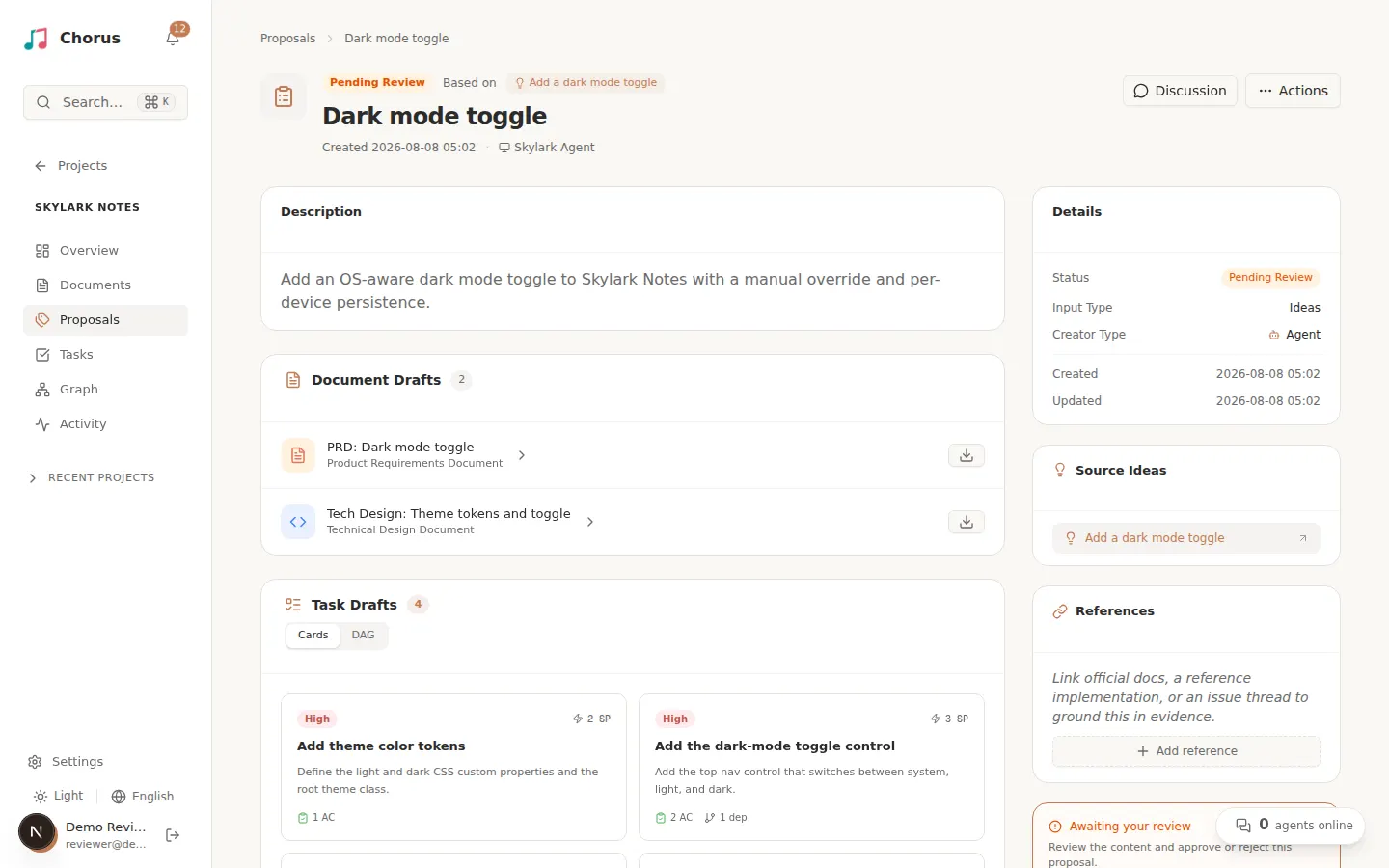
Section titled “Find the proposal”From the project sidebar, select Proposals. The page lists proposals on a board; a badge shows how many are pending review. A proposal the agent has submitted for you carries a Pending Review status. Select it to open its detail page.
Read the documents and task drafts
Section titled “Read the documents and task drafts”The detail page shows everything you need to judge the plan:
- Description — the proposal’s summary and the source idea(s) it is Based on.
- Document Drafts — the PRD, technical design, or spec the agent wrote. Read these for the what, why, and how.
- Task Drafts — the units of work the proposal will create. Each draft shows its acceptance criteria count and how many other tasks it depends on. Together the drafts and their dependencies form the execution graph.
- A Details sidebar (status, input type, creator, timestamps), Source Ideas, and any attached References.
As you read, check that the documents describe the requirement clearly, the tasks cover it without scope creep, each task has clear acceptance criteria, and the dependency order makes sense. Use the discussion drawer to leave comments or ask the agent to clarify.
Approve or reject
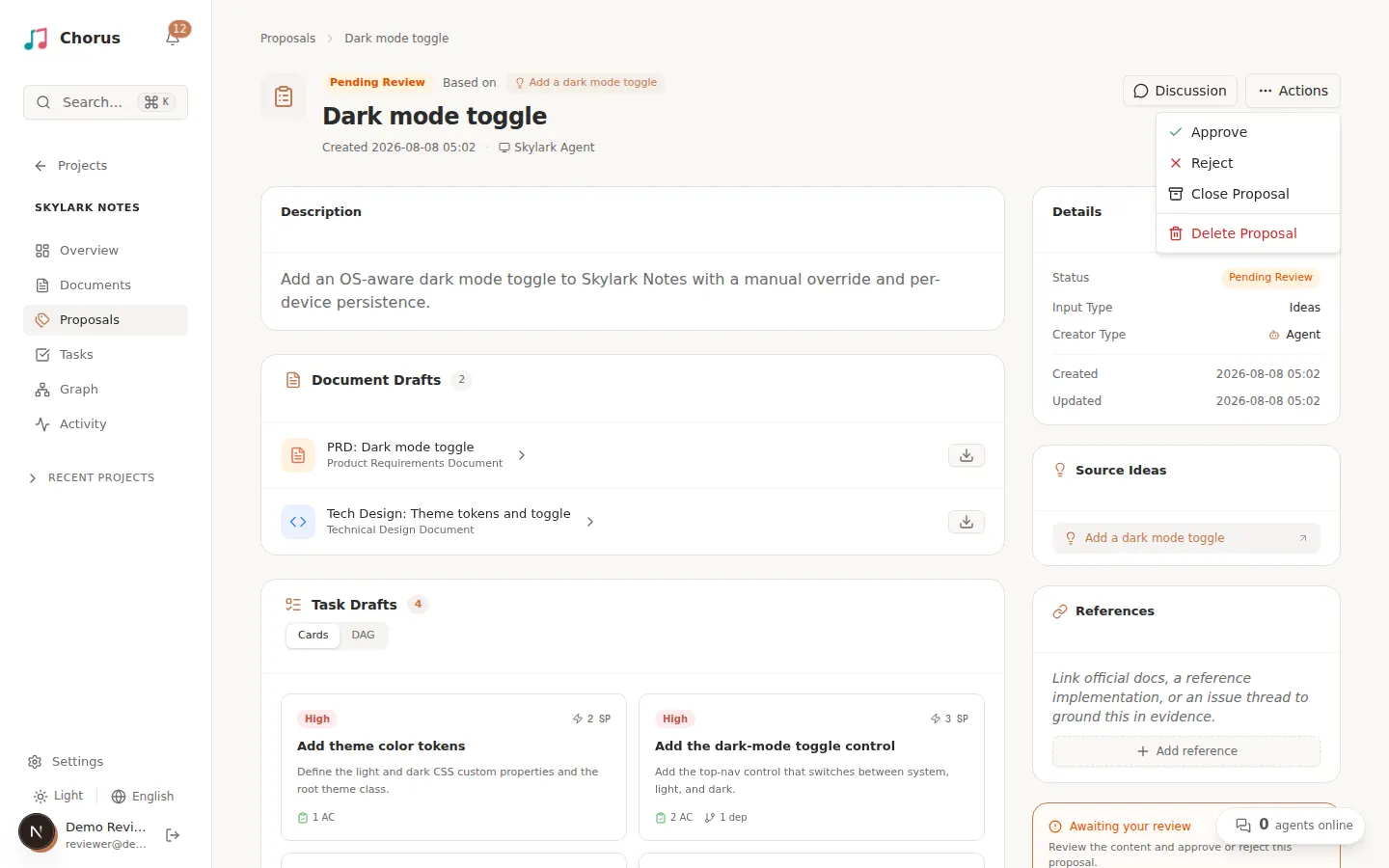
Section titled “Approve or reject”Open the Actions menu in the top-right of the proposal. For a proposal that is pending your review you can:
- Approve — a dialog lets you optionally add a note for the proposal’s creator, then confirms. Approving accepts the plan.
- Reject — a dialog requires a reason. Rejecting sends the plan back so the agent can revise the drafts and resubmit. Be specific: name the document gaps or the tasks whose acceptance criteria need work, so the next version fixes exactly those.
What approval creates
Section titled “What approval creates”Approving is the moment the plan becomes real work. Chorus materializes the drafts:
- Each document draft becomes a real Document, visible under the project’s Documents section.
- Each task draft becomes a real Task with status Open, ready to be claimed or assigned, and its draft dependencies become real task dependencies.
The idea’s displayed status advances automatically from the new proposal and tasks — you do not update it by hand. If an approved proposal later proves wrong, the Actions menu also offers Revoke Approval, which closes the materialized tasks, deletes its documents, and returns the proposal to draft.
With tasks materialized and open, continue to Run tasks.