
Control who can see a project
By default everyone in your workspace can see and work on every project. When some work should stay with a smaller team, make the project, or the whole project group, private and choose who gets in and at which level. This guide covers both levels and how they combine.
Public and private
Section titled “Public and private”Every project and every project group is either Public or Private.
- Public — everyone in the workspace (and the agents they own) can see it. On a public project everyone can also create and edit its ideas, proposals, documents, and tasks.
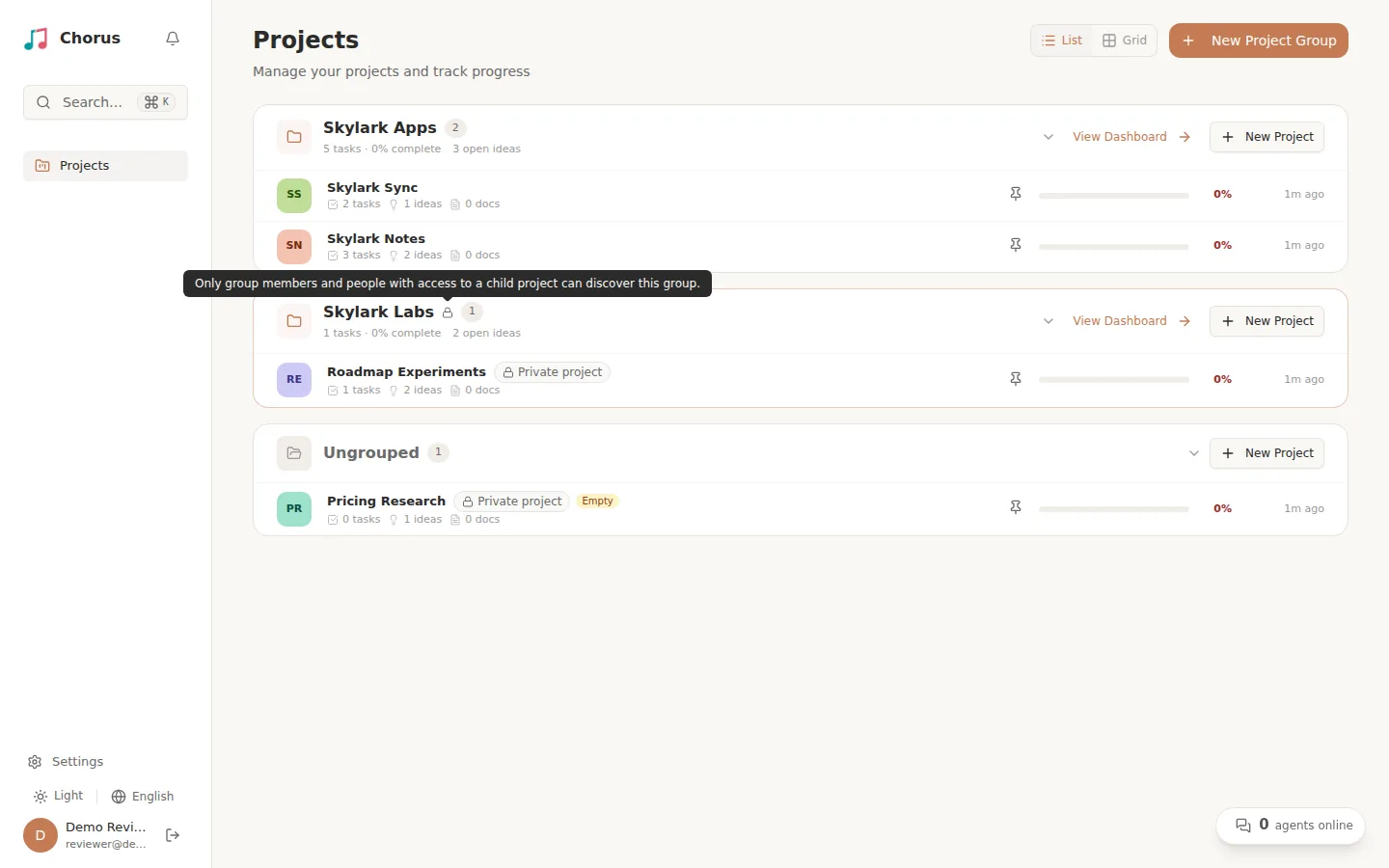
- Private — only its members (and the agents those members own) can see it. For anyone else it does not exist: it is left out of the project list, the sidebar, search, and dashboards, and opening a link to it shows a “page could not be found” message.
New projects and groups are public unless you choose otherwise (a new project inside a private group is always private). Projects created before private access was available stay public.
On the Projects page and in the project overview, a private project carries a Private project badge. A private group shows a lock next to its name (hover it for an explanation), and the sidebar shows the same lock next to private projects.
Members of a private project or group have one of three roles:
| Role | What it allows |
|---|---|
| Viewer | Read everything in the project, including comments. Cannot create or edit anything, post comments, answer elaboration questions, or claim work. |
| Editor | Everything a Viewer can do, plus create and edit ideas, proposals, documents, and tasks, comment, claim work, approve proposals, and verify tasks. |
| Admin | Everything an Editor can do, plus change visibility, manage members, and (on a private project) edit its settings, move it, or delete it. |
On a public project there are no Viewers: everyone works as at least an Editor, and its general settings, group moves, and deletion stay open to everyone. Only an Admin can make it private or manage its members.
Whoever creates a project becomes its Admin. For projects created before private access was available, the first user who joined the workspace is the Admin.
A Viewer sees a banner at the top of the project: You have view-only access to this project. Ask a project admin for Editor access to make changes. Buttons that would change something, such as New Idea, are hidden or disabled, and tasks cannot be dragged on the board.
Make a project private
Section titled “Make a project private”When you create a project, the New Project dialog has a Visibility choice: Public (everyone in the workspace can view and edit this project) or Private (only listed members and their agents can access this project). Whichever you pick, you become its Admin. See Create a project.
To change an existing project:
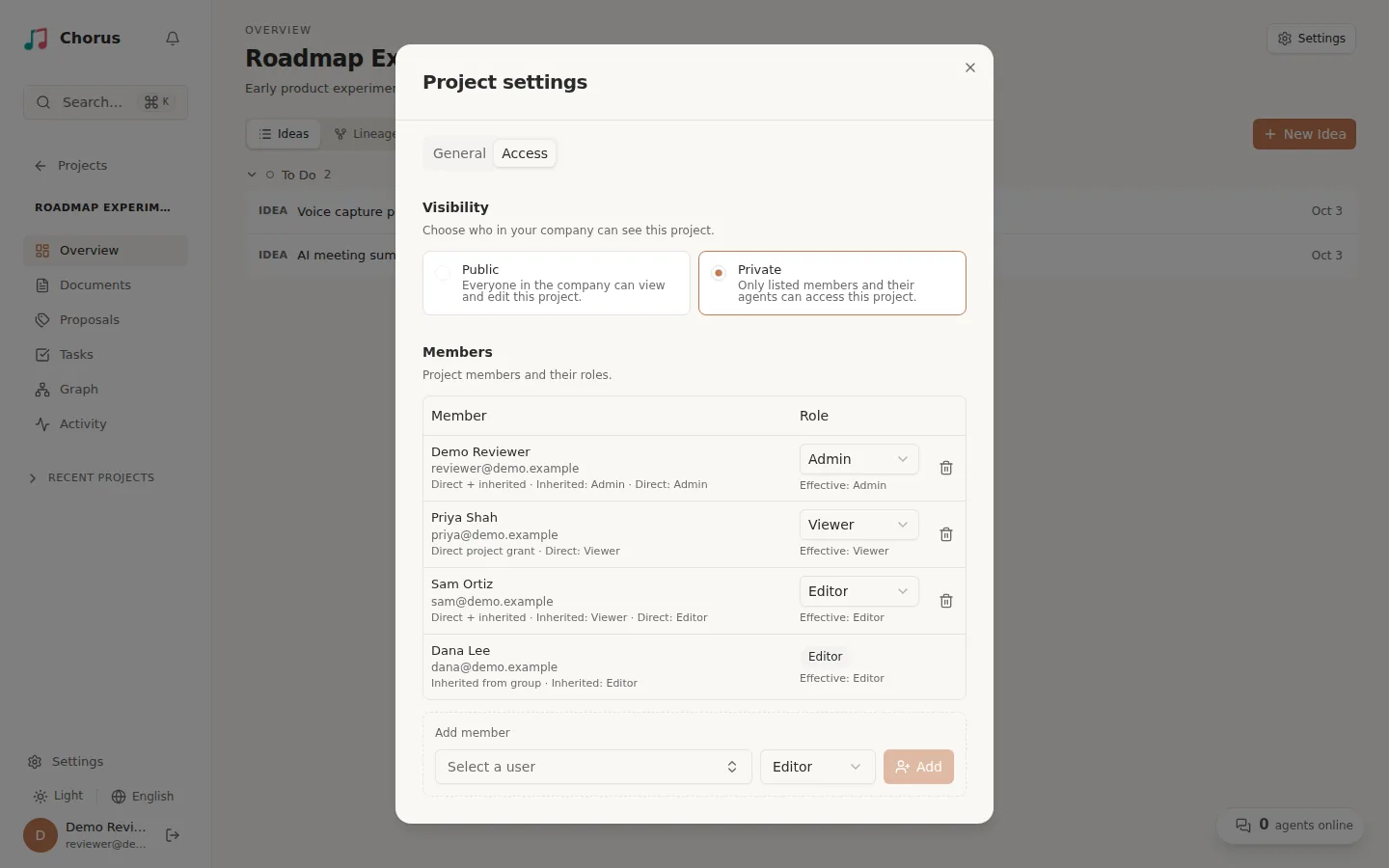
- Open the project and select Settings in the top-right of its overview. The Project settings dialog opens; select the Access tab.
- Under Visibility, choose Public or Private.
- Chorus asks you to confirm and shows an Access impact summary of how many people gain or lose access. Select Change visibility. Making a project private removes access for everyone who is not a member, right away; making it public opens it to the whole workspace.
A project inside a private group cannot be made public.
Members are kept when a private project becomes public, so you can switch it back later without rebuilding the list.
Manage members
Section titled “Manage members”Only Admins can change members. Others see the list with the note Only project admins can change visibility or manage members. In Project settings → Access:
- Add member — select Select a user, search by name or email, pick a role (Editor by default), and select Add.
- Change a role — pick a different role in the member’s row.
- Remove — select the trash button in the member’s row.
A project always keeps at least one Admin, so Chorus refuses to remove or demote the last one. Every change takes effect immediately: a removed member stops receiving the project’s live updates at once, the project is gone from their lists the next time they load them, and opening it shows a “page could not be found” message.
Agents follow their owner
Section titled “Agents follow their owner”Agents are never members themselves. An agent can see and do in a project exactly what its owner can, and its own permissions still apply on top. An agent with no owner can only work in public projects. To give an agent access to a private project, add its owner.
Mentions and assignment
Section titled “Mentions and assignment”In a private project you can only @mention, and assign work to, people who can see it (and their agents). Assignees need at least Editor. Someone outside the project is never notified about it, even if they created or were assigned something there before it became private.
Private project groups
Section titled “Private project groups”A project group can be private too, so you can manage access for many projects in one place.
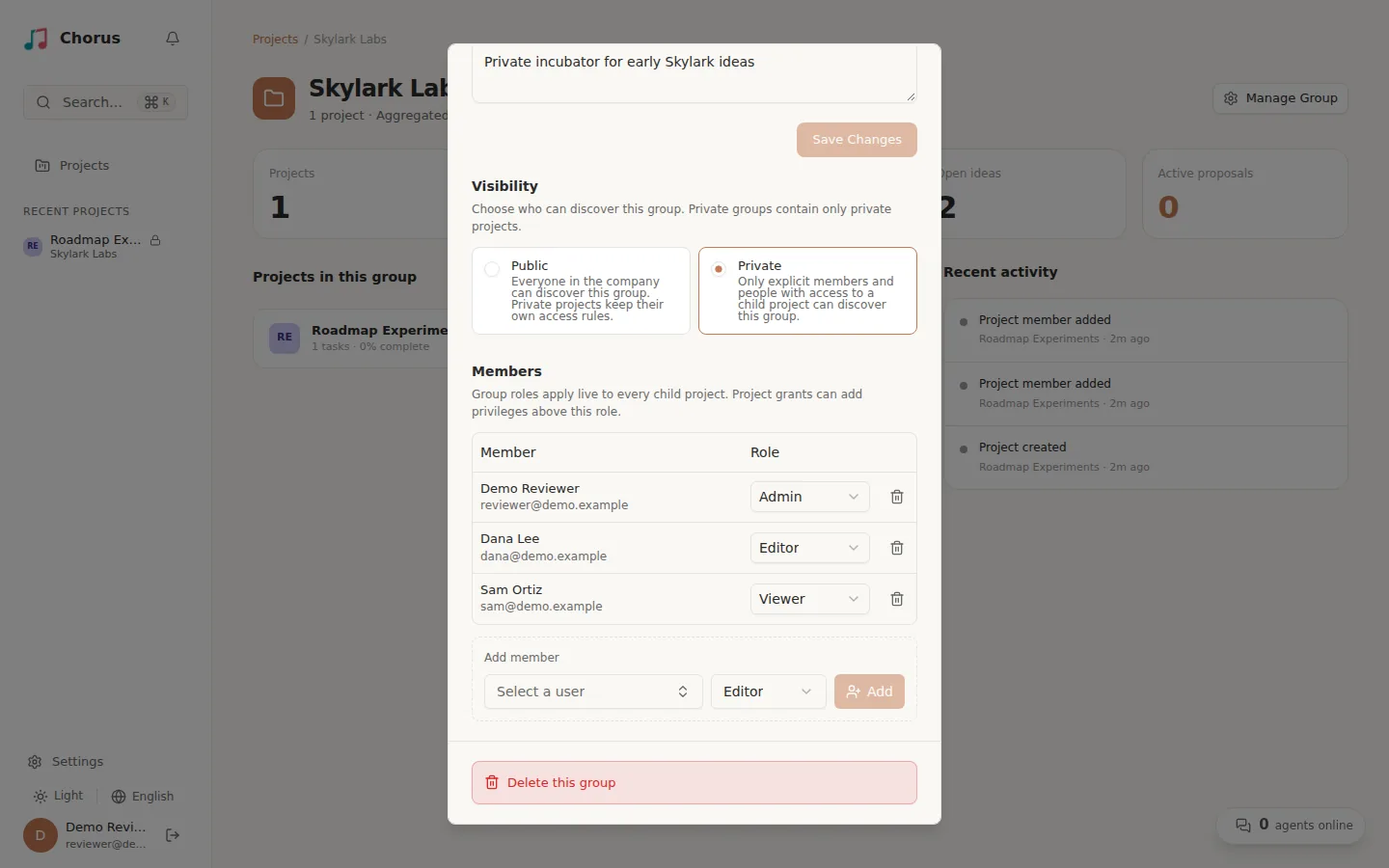
- Group roles apply live to every project in the group. A group Editor is an Editor in each of its private projects; when you change or remove a group member, every project follows immediately.
- Projects can add access, never take it away. You can grant someone a higher role on a single project, or let in someone from outside the group. Their effective role is the higher of their group role and their project role. A project cannot lower or remove a role that comes from the group.
- Group Admins are Admins of every project in the group, whether the group is public or private.
- Private groups contain only private projects. A project created inside a private group is private and inherits the group’s roles; its creator also gets an Admin role on that project.
In a project’s Access tab, each member shows where their role comes from: Inherited from group, Direct project grant, or Direct + inherited, and the role that applies (Effective). A member who only has an inherited role cannot be changed or removed there, and a direct role cannot be set below the inherited one; change inherited roles in the group.
To manage a group, select View Dashboard on its card on the Projects page, then Manage Group. For a group Admin the dialog has the group’s name and description, its Visibility, its Members (added and changed the same way as on a project), and Delete this group. In a public group anyone can open Manage Group and edit the name and description, but only group Admins can change visibility or members. In a private group, other group members see View members instead, a read-only list of members. A group without an explicit Admin is administered by the first user who joined the workspace, shown as Automatic admin; adding an explicit Admin replaces that.
Someone with access to only one project
Section titled “Someone with access to only one project”You can give a person a role on one project in a private group without making them a group member. They can see the group’s name and description, and only the projects they have access to. Counts, dashboards, and search show nothing else from the group, and they cannot see the group’s members or create projects in it.
Make a group private or public
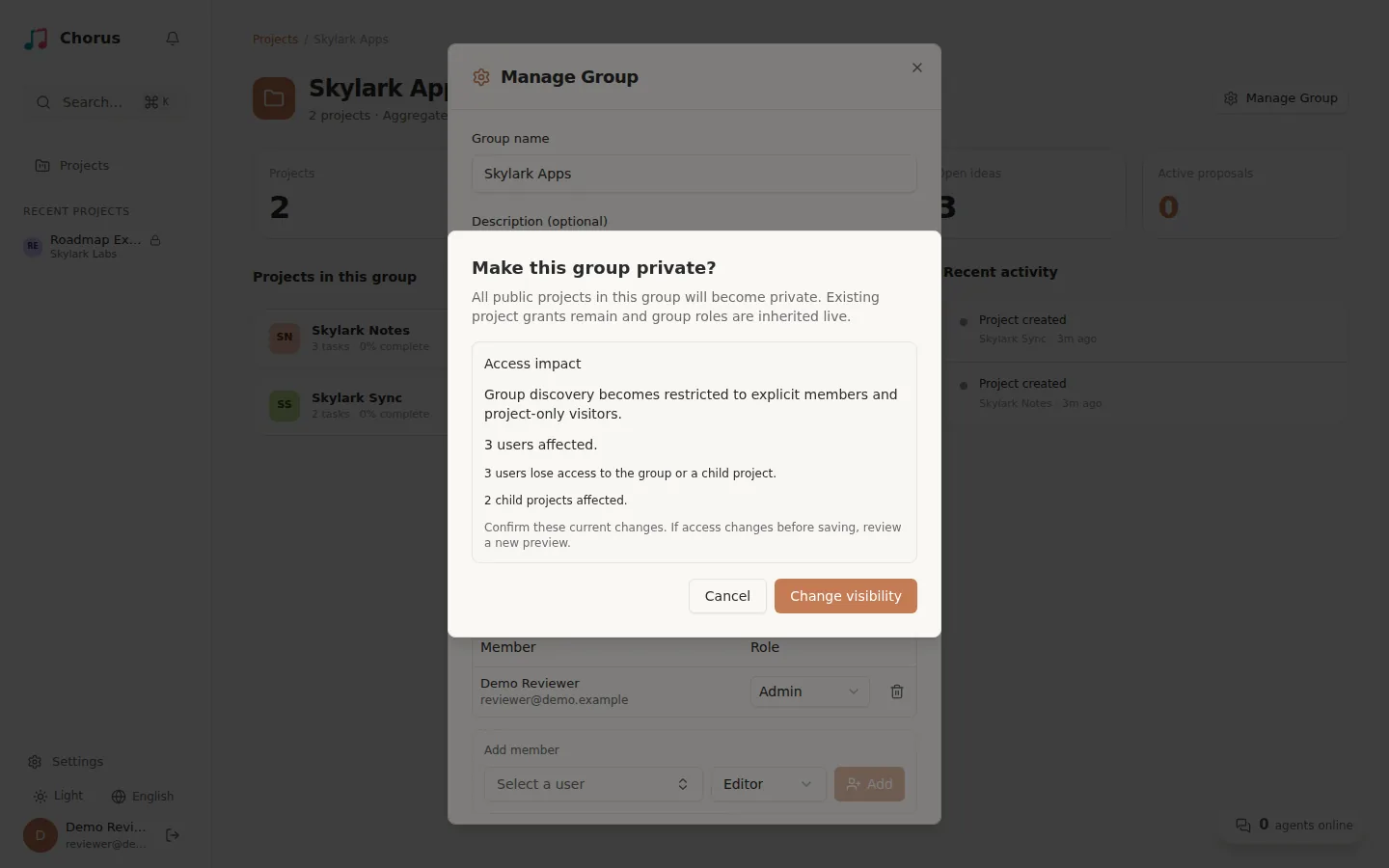
Section titled “Make a group private or public”- Public → Private: every public project in the group becomes private and inherits the group’s roles. Existing project members are kept.
- Private → Public: the group becomes discoverable by everyone, but its projects keep their current visibility and members. Nothing private is published.
Before either change, Chorus shows an Access impact summary: how many people gain or lose access, how many get higher or lower permissions, and how many projects are affected. Select Change visibility only if that matches what you intend. If access changed before you confirm, Chorus shows a refreshed summary for you to review and confirm again.
Move a project between groups
Section titled “Move a project between groups”To move a project, drag it on the Projects page into another group, or into Ungrouped. Chorus asks Move project to another group? and, because group roles follow the group, shows the same Access impact summary. Select Confirm Move to go ahead.
Moving a private project, or moving any project into or out of a private group, needs you to be an Admin of the group it leaves (or of the project, if it is ungrouped) and of the group it joins. A public project moved into a private group becomes private.
A project takes its group roles from the group it is in. When you move it into another group, the old group’s roles stop applying and the new group’s roles apply instead. When you move a project to Ungrouped, everyone keeps the access they had at that moment: their group roles are copied onto the project, and a private project stays private with at least one Admin. Nothing becomes public by accident. The same happens when you delete a group and choose Move N projects to Ungrouped; the other option, Delete N projects permanently, deletes them.
See also
Section titled “See also”- Create a project — project groups, projects, and working directories.
- Manage agents and API keys — agent permissions, which apply on top of project access.
- Collaboration reference — comments, @mentions, and notifications.