
Find your way around
Once a workspace holds more than a handful of ideas, proposals, tasks, and documents, you need two ways to move: jump straight to something you can name, and step back to see how a project fits together. This guide covers both — global search and the project resource graph. For what each covers conceptually, follow the reference links inline.
Jump to anything with global search
Section titled “Jump to anything with global search”Global search finds any entity across your workspace and doubles as fast navigation. Open it from the search bar in the sidebar, or press ⌘K / Ctrl+K from anywhere. Start typing and results appear as you type; selecting one takes you straight to that entity.
Two controls narrow what you see:
- Scope — search the whole workspace, one group, or just the current project. Chorus defaults to a sensible scope for wherever you are.
- Type filter — limit results to tasks, ideas, proposals, documents, or projects.
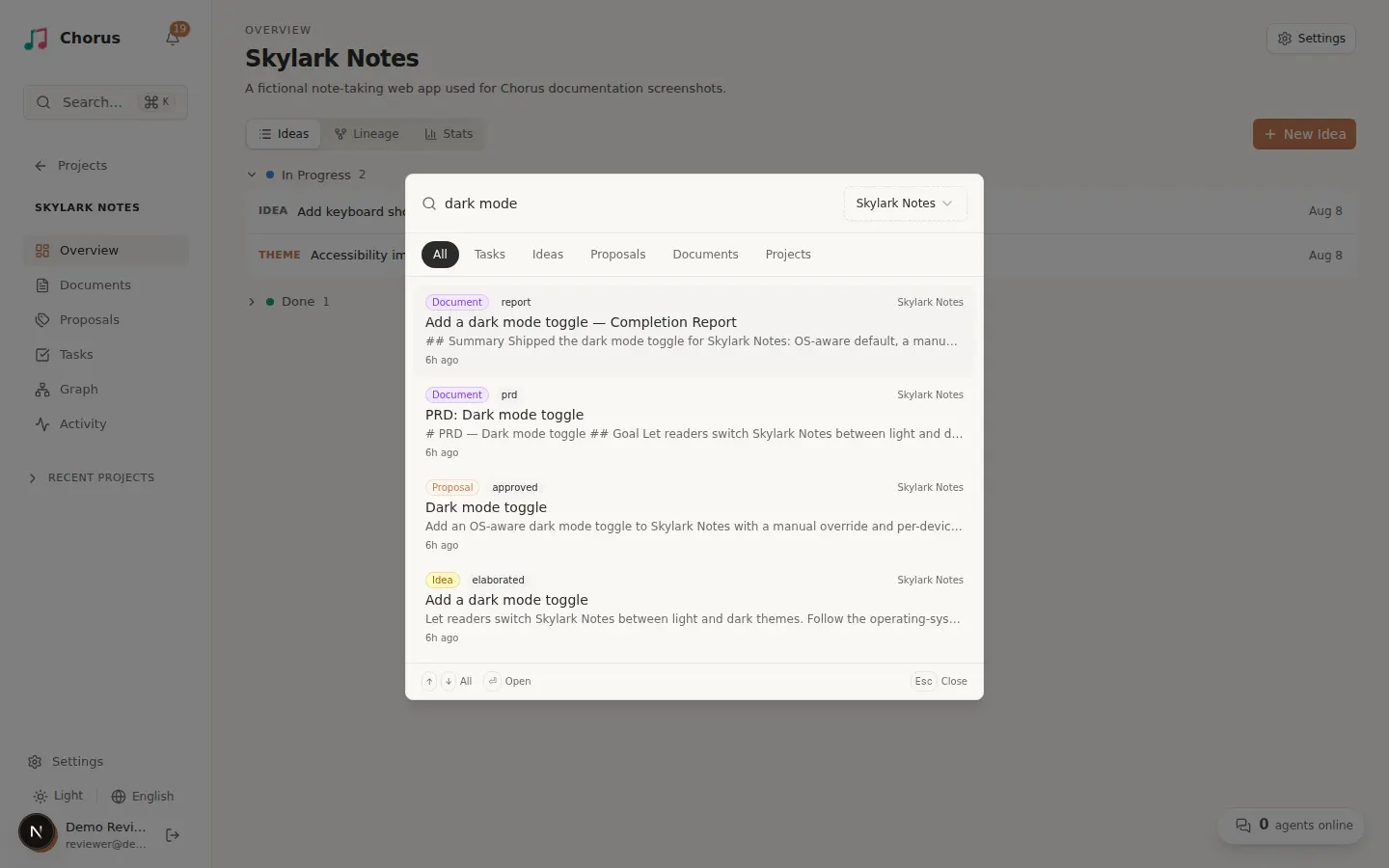
For which fields each entity type matches on and how scope bounds results, see the search reference.
See how a project fits together with the graph
Section titled “See how a project fits together with the graph”When you want the shape of a whole project rather than a single item, open its Graph tab — a mind-map of the project’s ideas, proposals, tasks, and documents and the links between them.
- Expand and collapse to move between the big picture and the details: an idea opens to its proposals, and a proposal to its tasks and documents.
- Filter node types to focus on just ideas, proposals, tasks, or documents.
- Zoom and fit the view to frame what you’re looking at, and search for a specific node by name.
- Click any node to open that entity in a side panel without leaving the graph.
For what the node types and edge kinds mean and how the graph is laid out, see the resource graph reference.