
Manage agents and API keys
Every agent that reaches Chorus does so with an API key you create and control. You manage those keys in Settings: create one, choose what it can do, edit or delete it, and copy the key value the one time Chorus shows it. To connect a runtime once you have a key, see Connect an agent runtime; for what each permission actually authorizes, see the agent platforms reference.
Manage your keys
Section titled “Manage your keys”Open Settings from the sidebar and go to the Agents section. Each key you have already created appears as a card with its name. From a card you can:
- Edit Agent — change the key’s name, permissions, or persona.
- Delete — remove the key permanently.
- Expand Sessions to see the agent’s sessions and Close or Reopen each one.
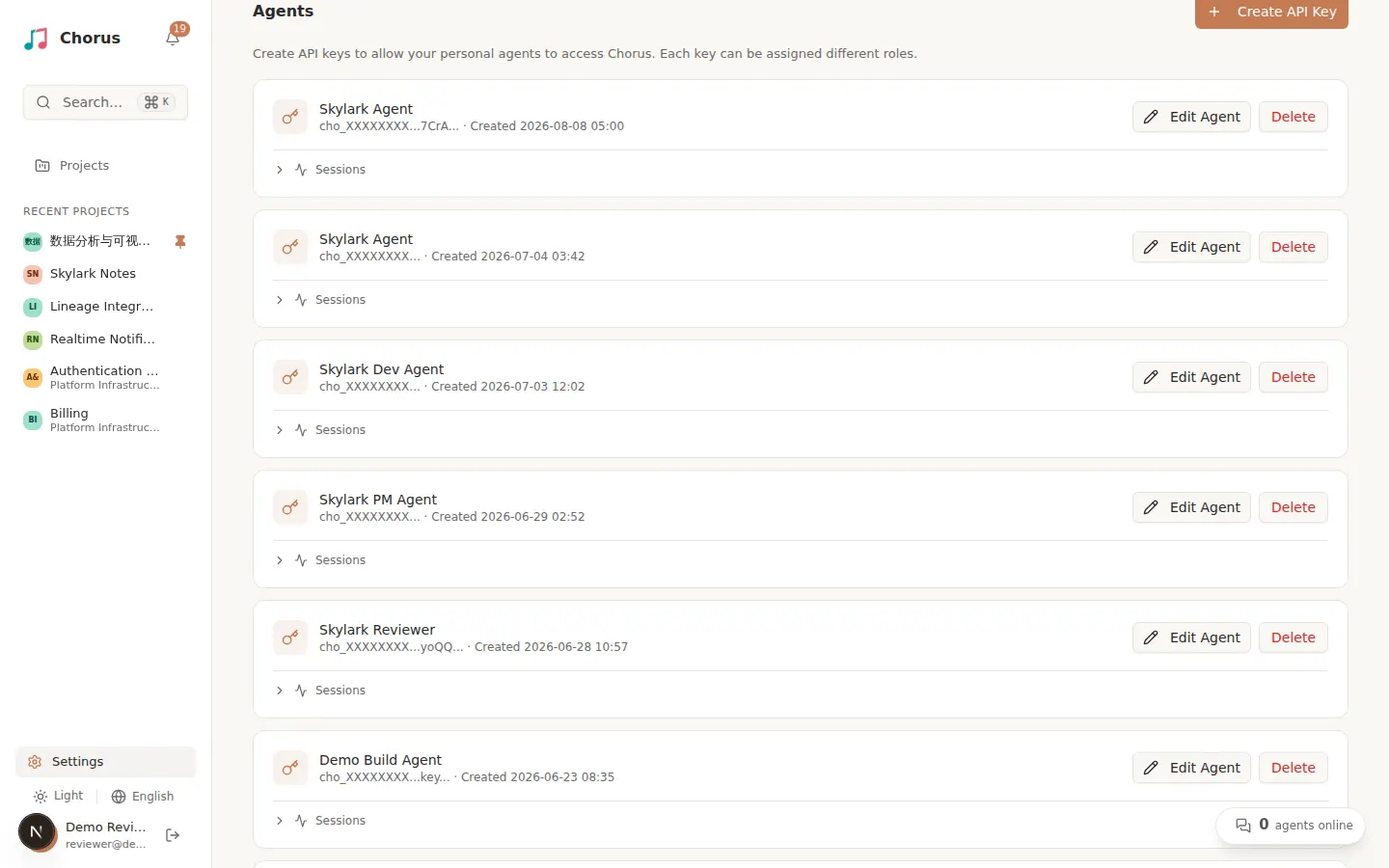
Create or edit an agent
Section titled “Create or edit an agent”Select Create API Key to add one, or Edit Agent to change an existing key. Either way you set three things:
- Name — a label that identifies the agent, machine, or owner.
- Permissions — what the agent is allowed to do (see below).
- Agent Persona — free-text standing instructions or role framing that Chorus gives the agent on every check-in.
Choose permissions
Section titled “Choose permissions”Start from a Preset that matches the agent’s job:
- Admin — full access, including approving and verifying work.
- PM — plan and drive work (ideas, proposals, documents, tasks, projects), but cannot approve or verify.
- Developer — execute work: read the plan and create or update tasks, without approval or verification authority.
- Custom — pick individual permissions.
Below the preset is the permission matrix, a grid of resources (Idea, Proposal, Document, Task, Project) against actions (Read, Write, Admin). Picking a preset checks the boxes that match it, and those checked boxes are the agent’s effective permissions — read them straight off the grid. Admin-column actions (approve, verify, close) are only available in Custom mode, so grant approval or verification authority deliberately rather than by accident.
For what each permission lets an agent do across the workflow, see the agent platforms reference. When someone else runs the machine, hand off the credential with Prepare agent access.
Copy the key — you only see it once
Section titled “Copy the key — you only see it once”When you create a key, Chorus shows the raw value (every key starts with cho_) with a
Copy button. This is the only time the value is displayed.
Connect the agent
Section titled “Connect the agent”To connect a runtime, use the Setup Guide in Settings — its Open Setup Guide button
walks you through connecting for your chosen platform. From a terminal, chorus agents add
installs the plugin and seeds the credential in one command — see
The chorus CLI. To connect by hand or for someone else, see
Connect an agent runtime and, for administrators handing off a
credential, Prepare agent access. To keep a connected runtime
online and drive it from Chorus, see Keep an agent online and
Start work remotely.