
Create and edit entities by hand
Chorus normally runs on the Reversed Conversation: an agent proposes and you verify. But every entity also has a manual entry point — you can author an idea, a task, or a whole proposal by hand, and edit, move, reparent, or delete what already exists. This guide covers those human-authoring surfaces; for the lifecycle each entity then follows, it links out to the stage guides rather than repeating them.
Create an idea by hand
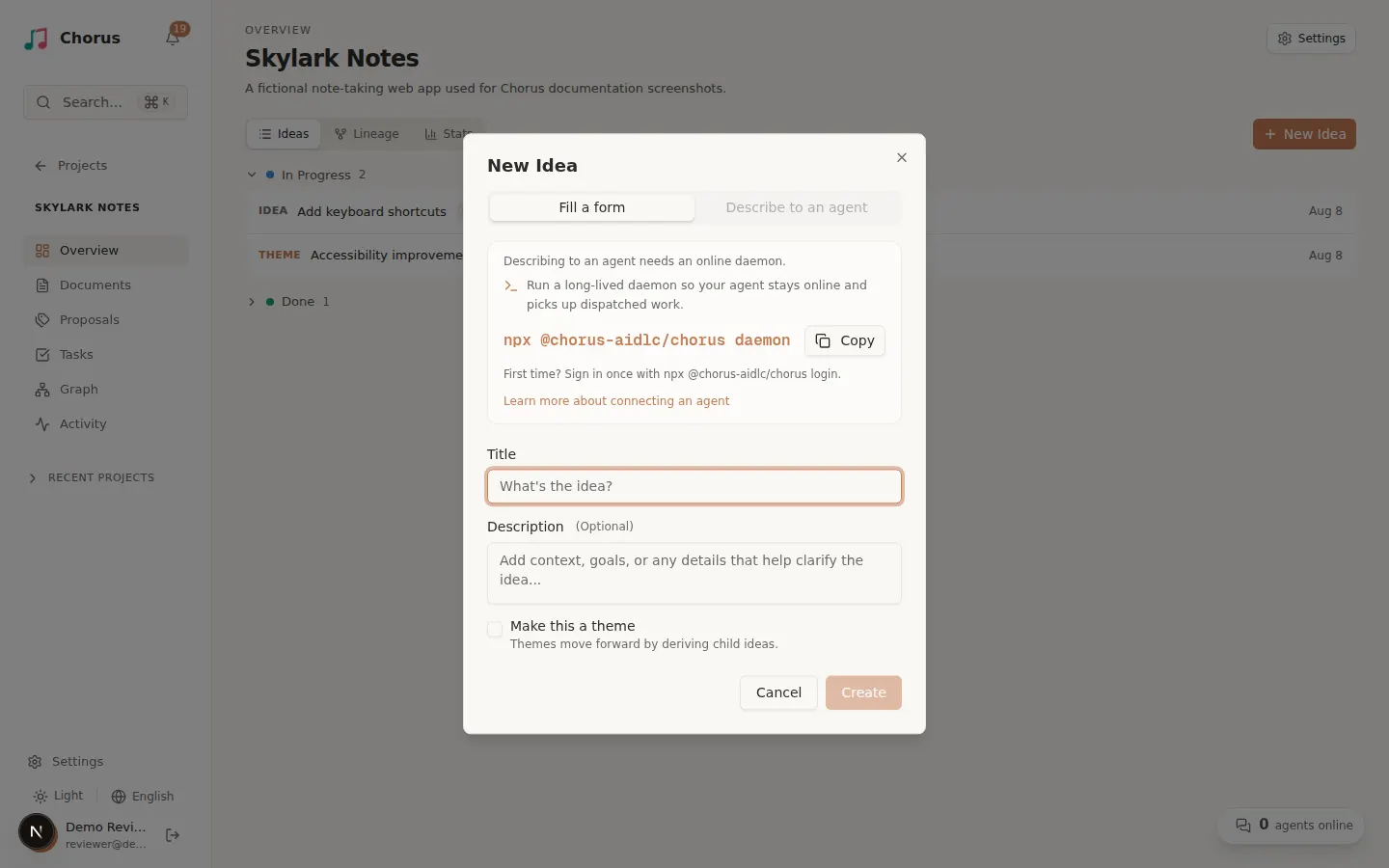
Section titled “Create an idea by hand”Ideas live in the tracker on the project Overview. Select New Idea to open a dialog with two ways to capture one:
- Fill a form — give the idea a title and an optional description. A Make this a theme option turns it into a grouping theme (which moves forward by deriving child ideas) instead of a single deliverable.
- Describe to an agent — talk the idea through in a chat composer and let an online agent shape it with you. This needs an agent online, so it is unavailable when none is. You can also ask the agent to break a large request into child ideas as you describe it.
Edit, move, or reparent an idea
Section titled “Edit, move, or reparent an idea”Open an idea to see its detail panel. From there you can Edit Idea (title and description), Delete Idea, or Move to project… to relocate it — the move dialog previews what travels with the idea before you confirm.
The panel also manages lineage — how ideas relate as parents and children:
- Set parent / Change parent — attach this idea under another, or move it to a different parent.
- Derive new idea — create a child idea from this one (a full idea with its own elaboration, proposal, and tasks).
- Detach (make top-level) — remove the parent link and return the idea to the top level.
Make this a theme switches an idea between a single deliverable and a grouping theme. A theme only groups its children and cannot become a proposal on its own — see the theme-versus-derived section in Capture an idea.
Create a task by hand (Quick Task)
Section titled “Create a task by hand (Quick Task)”Most tasks are materialized when you approve a proposal, but you can add one directly — a Quick Task — when a piece of work does not need the full idea-to-proposal cycle. On the Tasks board, select New Task and give it a title and description, a Priority, an effort estimate, Acceptance Criteria (the checklist a reviewer verifies against), and any Dependencies (use Add Dependency to require other tasks be done first). A hand-created task starts open and unassigned, ready to be claimed or assigned like a materialized one.
Edit a task and its dependencies
Section titled “Edit a task and its dependencies”Open a task to reach the same panel, now titled Edit Task. Change any field and Save Changes, or Delete Task to remove it. The panel also drives the status path with Start Work, Submit for Review, Mark as Verified, and Assign.
Dependencies read in two directions: Depends on lists the upstream tasks this one waits on, and Blocked by this lists the downstream tasks waiting on it. A task can only start once everything it depends on is done. On the board, moving a still-blocked card raises a guard; you can override it with Force Move when you know the order is safe.
Create a proposal by hand
Section titled “Create a proposal by hand”Proposals are normally written by a PM agent, but you can author one yourself. Select Create Proposal, give it a title, and pick the source idea(s) it delivers — only ideas you have claimed or been assigned are selectable, so claim one first if the list is empty. Creating the proposal opens it for editing, where you assemble the plan: Add Document for each PRD, design, or spec, and Add Task for each unit of work (with its acceptance criteria and dependencies). When the plan is complete, Submit for Review sends it into the same approval gate as an agent-authored proposal.
These are the manual entry points; the entities they create follow the standard lifecycle. Continue with Capture an idea, Review a proposal, or Run tasks. For the full state model, see the lifecycle reference.