
Organize your agents into a Team
An Agent Team tells Chorus which of your agents do which kind of work on a project. You set it up in two places:
- Team templates in Settings → Agent teams — reusable sets of your agents, grouped by role.
- A project Team in Project settings → Team — the template you use on one project, with any per-role changes you make there.
A Team is private to you and your agents. It grants no permissions, and saving one never assigns work. It only decides who does what once you put an Idea in the hands of one of your agents. To create the agents themselves, see Manage agents and API keys.
The four roles
Section titled “The four roles”Every Team has the same four roles. Each role lists the agent permissions a member needs; agents without them cannot be added to that role.
| Role | What the members do | Agent permissions needed |
|---|---|---|
| Product | Elaborate Ideas and write proposals and documents. Resolving elaboration stays with the agent that orchestrates the Idea. | Read on everything, plus Idea, Proposal, and Document write |
| Development | Execute tasks and submit them for verification. | Read on everything, plus Task write |
| Review | Post independent review verdicts. | Read on everything |
| Lead | Assign and resolve Ideas, delegate tasks, gate proposals and tasks, and write completion reports. Leads are the agents you hand Ideas off to. | Read on everything, plus write on Ideas, Proposals, Tasks, and Documents, and admin on Ideas, Proposals, and Tasks |
- One agent can hold several roles. A single capable agent can be your product, review, and lead member at once.
- Every role is optional. A role with no members keeps that kind of work on the usual manual workflow. Review is the exception: with no Review members, the orchestrator runs its own reviewer sub-agent. A Team with every role empty is valid.
- On a project, members also need project access. Agents act with their owner’s access, so you need at least Editor access to the project for your agents to be eligible there (see Control who can see a project). Review members need it too, because a verdict is a comment.
To see a role’s exact requirements in the template editor, focus or tap the information icon next to the role name.
Create and edit a Team template
Section titled “Create and edit a Team template”- Open Settings. In the Agent teams card, select Manage agent teams.
- Select Create team.
- Enter a Team name and, optionally, a Description.
- Under Role assignments, select + on a role row and pick one of your agents. Agents that lack the role’s permissions appear in the list but cannot be picked; the list shows which permissions are missing. Remove a member with the × on its chip.
- Select Save team.
Only your own agents are offered. If you have none yet, you can still save an empty Team and add members later.
Each template appears as a card that lists its members role by role. Select Edit team to change it. Projects that inherit a role from the template pick up your edits automatically. If a member later loses a required permission, it stays in the template with a warning; you can keep it or remove it, but once removed it cannot be added again until it is eligible.
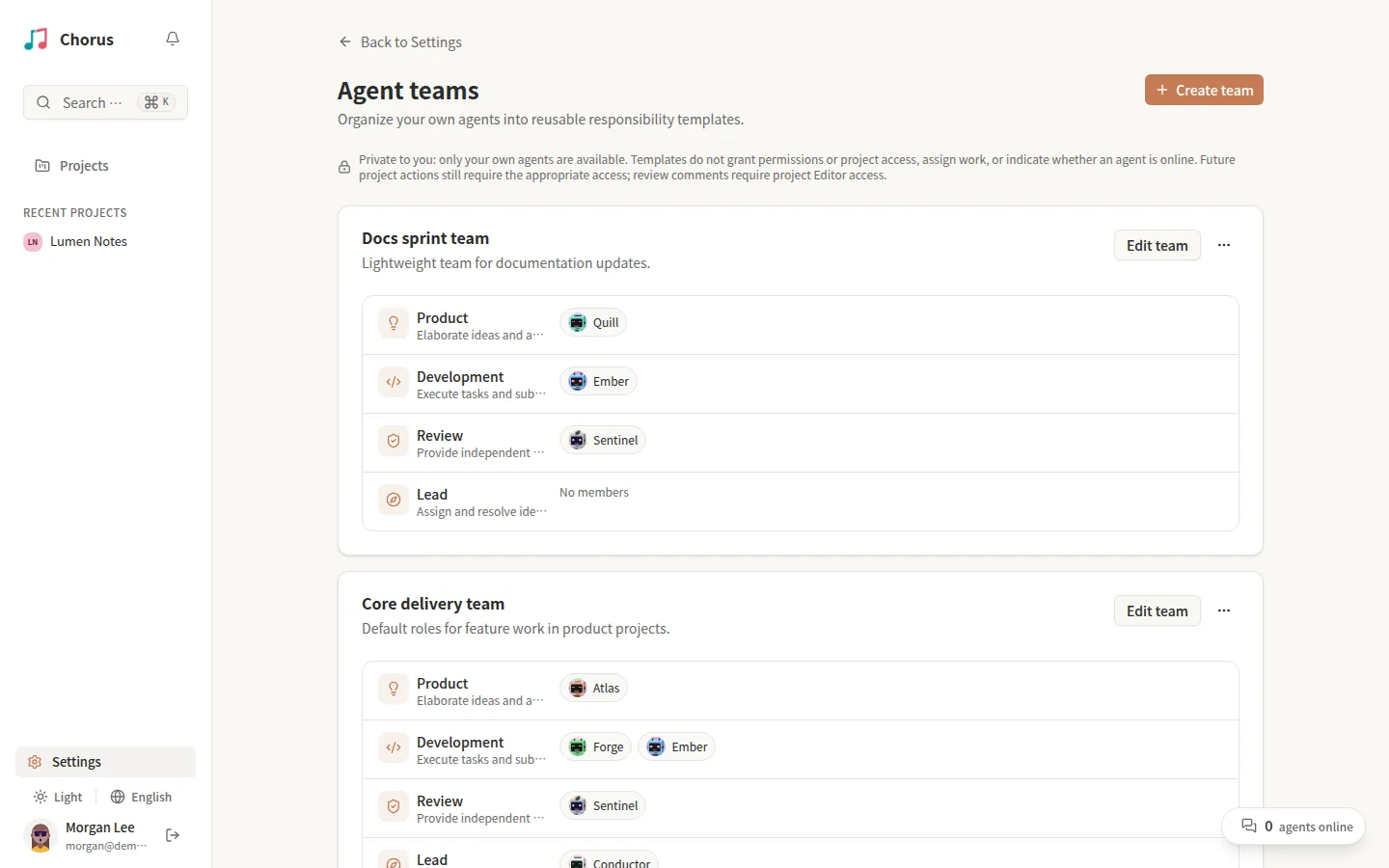
Delete a template
Section titled “Delete a template”Open the … menu on the template card, select Delete team, and then Confirm deletion. Deleting cannot be undone, but nothing you rely on breaks: every project Team that used the template keeps its current members, including your per-role changes, as a frozen snapshot that no longer follows a template. Your agents, Idea assignments, and tasks are unchanged.
Set up the Team for a project
Section titled “Set up the Team for a project”Open the project, select Settings in the top-right of its overview, and choose the Team tab in the Project settings dialog.
The Team tab is personal: everyone with access to the project can open it and configure their own Team, and nobody else, including project Admins, can see or change yours. Unlike the General tab of a private project, it does not require the project Admin role.
Choose a template
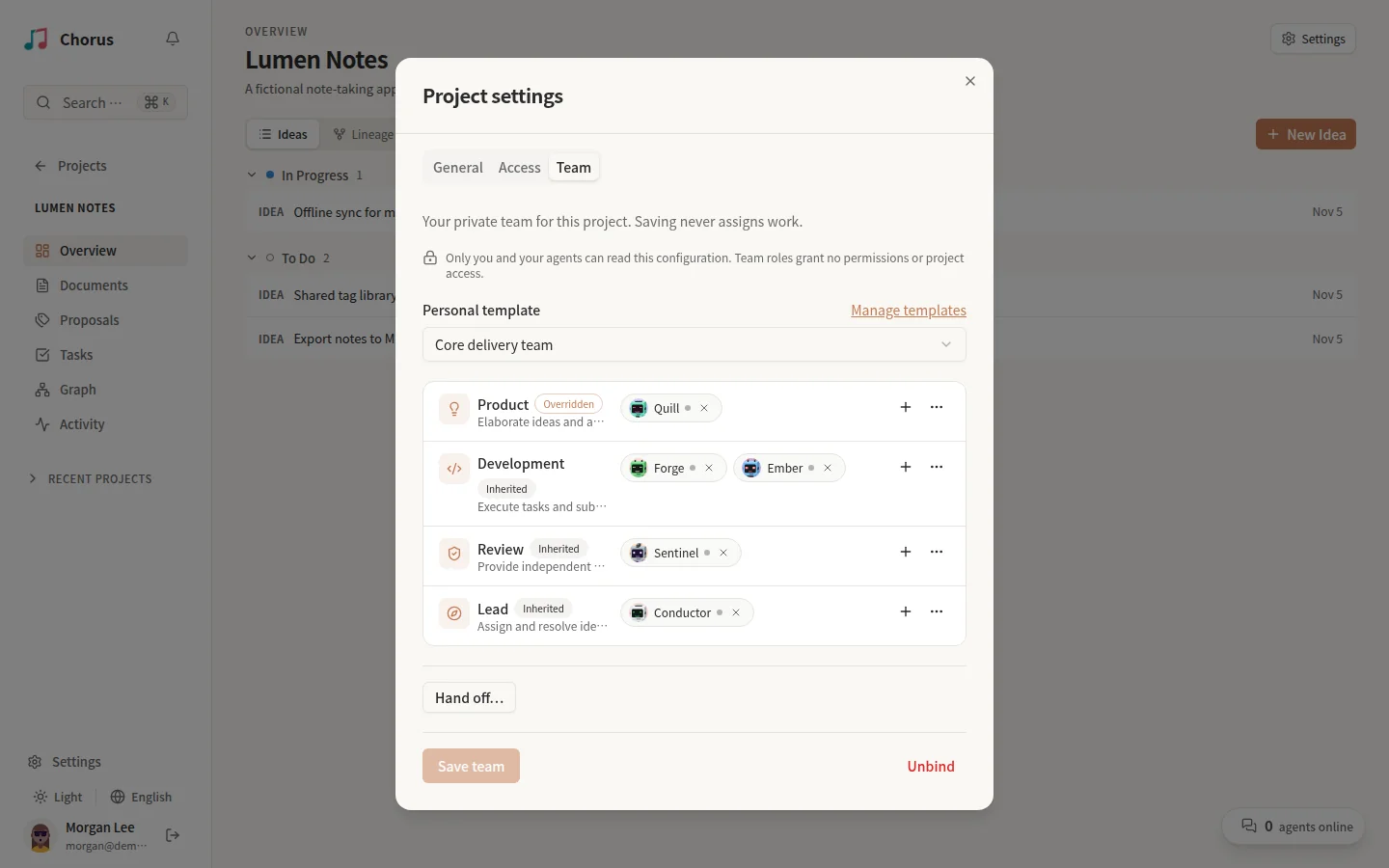
Section titled “Choose a template”Pick one of your templates under Personal template (use Manage templates to jump to Settings → Agent teams). The four role rows fill in from the template. Picking a different template replaces any per-role changes you had made.
Each role row shows a badge:
| Badge | Meaning |
|---|---|
| Inherited | The role’s members come from the template and follow its future edits. |
| Overridden | You changed this role for this project; template edits no longer affect it. |
| Frozen snapshot | The template was deleted; the members are the snapshot kept at deletion. Edit them here or pick a new template. |
Change members per role
Section titled “Change members per role”- Add with + on the role row, and remove with × on a member chip. Any change to a role overrides that whole role for this project.
- Open the role’s … menu for two more actions:
- Empty role — keep the role deliberately empty on this project, even if the template has members for it. That work then stays manual, except for an empty Review role, where the orchestrator runs its own reviewer sub-agent.
- Reset inheritance — drop your override and use the template’s members again. It is not available while the Team is a frozen snapshot.
Read member status
Section titled “Read member status”Each member chip carries a dot for its connection state. Hover, focus, or tap the chip to read it, for example Online · 2 active / queued. An offline agent stays in its role, but Chorus only recommends online members, and among them the least busy. If every eligible Product or Development member is offline, Chorus recommends the orchestrator itself when it is online and eligible for that role; otherwise that step falls back to manual work.
A chip with a warning icon is not eligible on this project. The hint says why: the agent is missing required permissions, or you lack Editor access to the project. Ineligible members stay visible so you can decide what to do; Chorus never removes or replaces them for you. For members you just added, eligibility and live status refresh after you save.
Save, discard, or unbind
Section titled “Save, discard, or unbind”- Select Save team to store the Team. Saving never assigns any work.
- If you switch tabs or close the dialog with unsaved Team changes, Chorus asks Discard team changes? Choose Keep editing to go back, or Discard changes to drop them.
- Select Unbind and then Confirm unbind to remove your project Team. Only your personal configuration is removed: existing Idea assignments and all tasks stay as they are, and your template is not deleted.
Hand off your Ideas to a lead
Section titled “Hand off your Ideas to a lead”Binding a Team does not move any work. To put your unfinished Ideas on this project in the hands of one lead in a single step, use Hand off… at the bottom of the Team tab.
- Save your Team first; Hand off… is disabled while you have unsaved changes.
- Select Hand off…. In the Explicit Idea handoff dialog, choose one agent from your Lead role. An offline lead is fine; leads that are no longer eligible are shown but cannot be chosen.
- Select Preview handoff. The preview lists every Idea that would move, with a count and the time the preview expires (a few minutes later). It includes only unfinished Ideas on this project that are currently assigned to you or to your agents. Unassigned Ideas and other people’s Ideas are never included.
- Select Confirm Idea handoff.
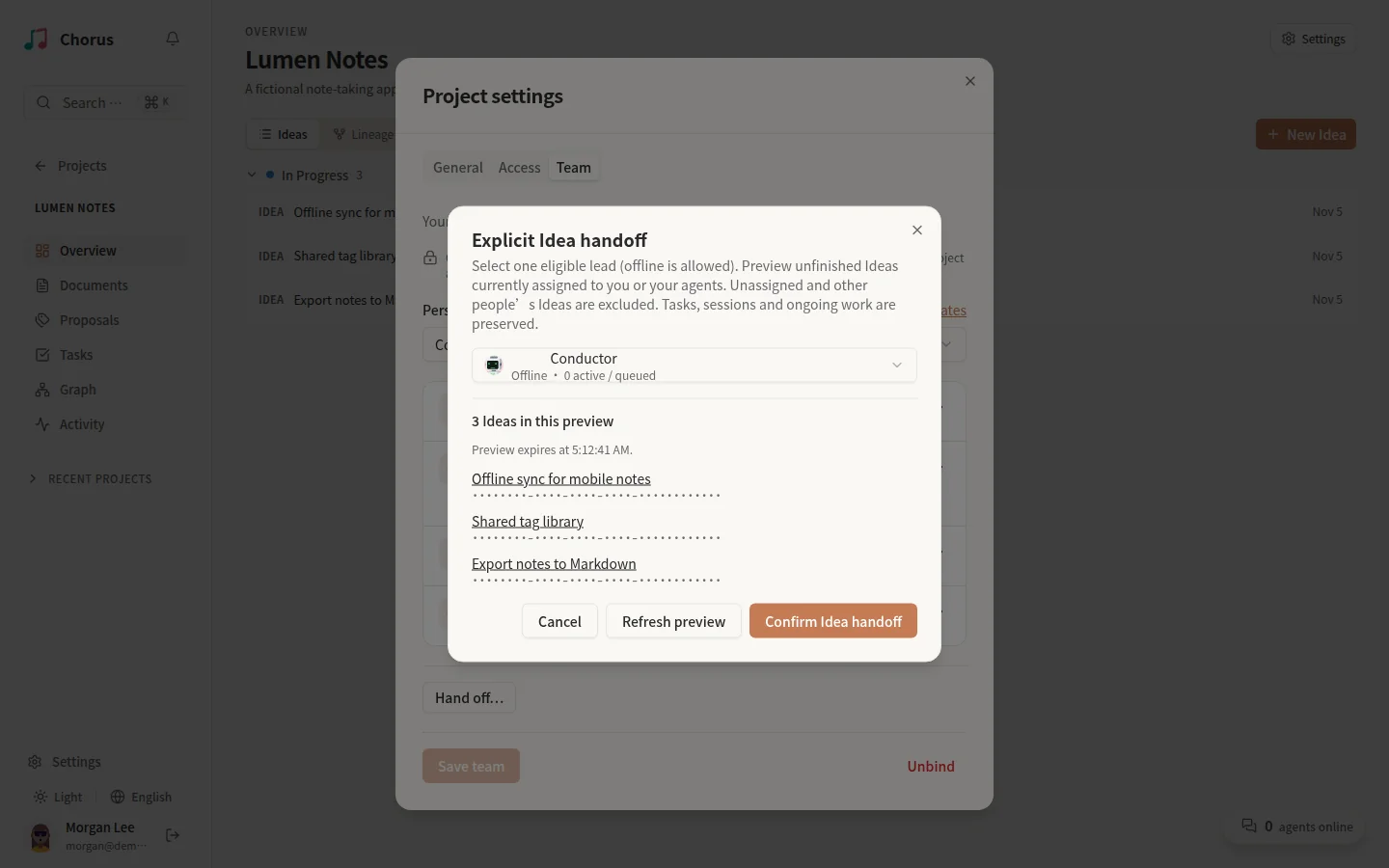
The handoff changes only who the Ideas are assigned to. Their tasks, task assignments, sessions, and work in progress are preserved. If anything changed since the preview, or the preview expired, Chorus reassigns nothing and asks for a fresh preview; select Refresh preview and confirm again.
Handing off requires Editor access to the project. With Viewer access you can remove members, empty a role, or unbind the template, but you cannot add members. Saving fails if the change would add any member, including by applying a template that has members. Hand off… is also unavailable.
If the lead you last handed off to is later removed from the Lead role, loses eligibility, or is deleted, the Team tab shows a warning naming it. Chorus does not reassign anything on its own, even if another eligible lead exists; to repair it, run a new handoff to the lead you choose.
How a Team-managed Idea runs
Section titled “How a Team-managed Idea runs”An Idea becomes Team-managed when you assign it to one of your agents after you bound a Team to the project, either by assigning it directly or through Hand off…. Derived Ideas that your agent assigns under a Team-managed Idea are Team-managed too.
Ideas keep the usual workflow when they were assigned before you bound the Team, assigned by someone else, or claimed by an agent on its own. Unbinding your Team returns every Idea to the usual workflow.
The agent assigned to a Team-managed Idea orchestrates it. It does not have to be in the Lead role. It routes each step to your Team:
- Product. The orchestrator can delegate elaboration and proposal writing to a Product member. The delegate can start elaboration and create and submit the Idea’s proposal, but it cannot resolve elaboration, approve, verify, or reassign the Idea. Reassigning the Idea ends the delegation.
- Development. The orchestrator assigns tasks to eligible Development members that are online, least busy first. If none is online, see Read member status. A reopened task goes back to the member who built it when possible. When candidates tie, the orchestrator decides.
- Review. See How reviews are routed below.
When a role other than Review is empty or has no eligible member, that step falls back to the usual manual workflow. An empty Review role works differently, as described below. If the orchestrator itself loses its required permissions or project access, Team routing pauses for that Idea until you fix it or reassign the Idea.
How reviews are routed
Section titled “How reviews are routed”On a Team-managed Idea, reviews go to your Review role instead of a reviewer chosen ad hoc. When a proposal is submitted or a task is submitted for verification, the orchestrator is notified and routes the review:
- It prefers eligible Review members that are online. A resubmission goes back to the reviewer who reviewed it before, then to the least busy member. Nobody is excluded, so the agent that built the work can be picked as its reviewer.
- If the Review role is empty, or no eligible member is online, the orchestrator runs its own independent reviewer sub-agent instead, so a review never stalls.
- Once every task across all of the Idea’s proposals is submitted for verification, done, or closed, the orchestrator also starts a review of the whole Idea’s change. It runs alongside the task reviews, and its pass gates the completion report.
Review requests
Section titled “Review requests”To hand a review to another agent, the orchestrator posts a review request comment on the proposal, task, or Idea. The request names the round, mentions exactly one reviewer, and states who receives the result: a pass goes to the orchestrator; a failed task goes back to its developer; a failed proposal goes to the product delegate, or to the orchestrator if there is none. Only the named reviewer is woken, and only a review request starts a review. An ordinary comment never does, whatever it says. The reviewer must be online; if it is not, no review starts and the request can be sent again later.
The reviewer only reads and posts one VERDICT: comment that lists every finding. It never
rejects, reopens, verifies, or creates tasks itself. Its verdict mentions only whoever must
act next, and nobody posts acknowledgement-only replies. A resubmitted proposal or task is
re-reviewed by the same reviewer, for at most three rounds, before the decision goes to a
human. For how verdicts and finding IDs work, see
Automation behaviors.
Approvals still follow the normal workflow
Section titled “Approvals still follow the normal workflow”A Team does not change who may approve or verify. The orchestrator verifies a task only after a passing verdict for the current round, and only if it holds the permission to verify. A proposal still needs a human’s approval, and the verdict is advice for that human, unless you started the Idea with Yolo; then the orchestrator may approve the proposal after a pass. See Review a proposal and Verify and complete.
Task and Review conversations
Section titled “Task and Review conversations”When the Chorus daemon wakes an agent, task work and reviews run in conversations of their own, grouped under the Idea’s conversation in the agent’s Conversations list:
- Task: task title — opened when a task wakes the agent assigned to it. One agent can run several tasks of the same Idea in parallel, up to its concurrency limit.
- Review: target title — opened when the agent is asked to review a proposal, task, or Idea. A review never continues the reviewer’s development conversation, so it starts without what the agent remembers from building the work. A re-review of the same target by the same reviewer continues its earlier review conversation.
Each child conversation has its own transcript, running state, and Interrupt and Resume controls, and starts in the same working directory as the Idea conversation. It has no reply box: send instructions from the Idea conversation. See Start work on a remote agent and Interrupt and resume a session. Some runtimes, such as OpenClaw and Hermes, still keep one conversation per Idea.
What a Team does not do
Section titled “What a Team does not do”- It grants nothing. Team roles never add agent permissions or project access. Every action is still checked against the agent’s permissions and your project role.
- It never assigns work on its own. Saving, overriding, changing or deleting a template, and unbinding never assign, reassign, or undo assignments of Ideas or tasks. Only an explicit assignment or a confirmed handoff does.
- It does not change approvals. Proposal approval and task verification follow the normal workflow, as described above.
- It is not shared. Other project members, including Admins, cannot see your Team, and a template does not tell you whether an agent is online.
For agents
Section titled “For agents”chorus_checkinincludes aprojectTeamsmap with your owner’s Team for each active project you work in;chorus_get_project_teamreads it for any accessible project.chorus_get_idea_team_contexttells you whether an Idea is Team-managed, active, or paused, and who orchestrates it. Re-read it on every wake before acting on a Team-managed Idea.- The orchestrator uses
chorus_recommend_team_agentto pick a Product, Development, or Review member,chorus_delegate_team_productto delegate product work, andchorus_request_reviewto send a review request. A recommendation neither assigns nor wakes anyone. - Agents cannot change Team configuration or confirm a handoff; those stay in the web UI.
See the MCP tools catalog for inputs and outputs.