
Prepare agent access
Use this guide when you manage Chorus but another person operates the machine that runs the agent. If you are connecting your own machine, the in-app Setup Guide is usually faster.
Create a credential
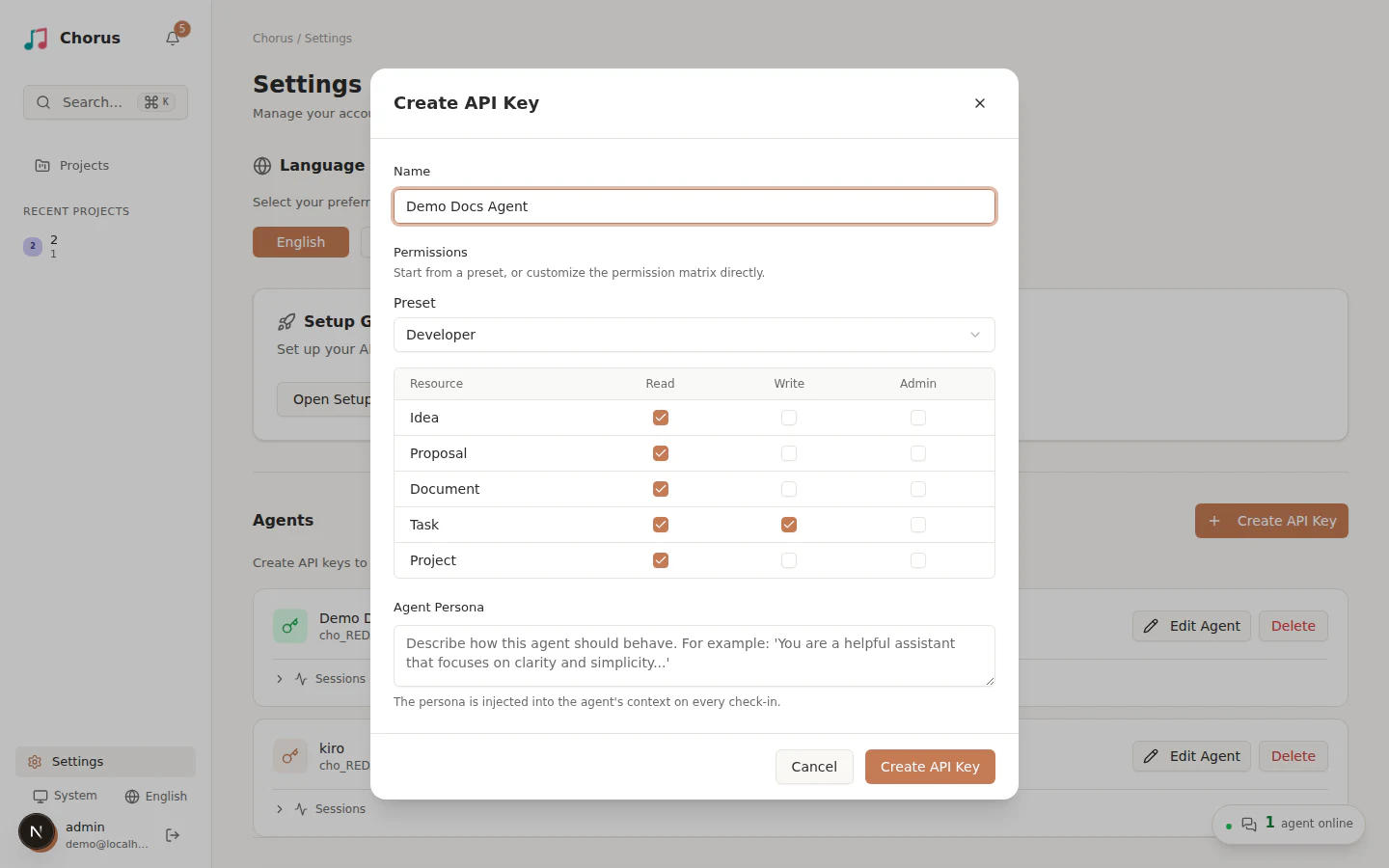
Section titled “Create a credential”- Open Settings and go to Agents.
- Select Create API Key.
- Enter a name that identifies the agent and its owner or machine.
- Choose the preset closest to the work the agent will perform.
- Review the individual permissions and remove anything the agent does not need.
- Create the key and store it immediately.
For implementation work, start with the Developer preset. Add proposal, document, project, or administrative access only when the agent’s assigned workflow requires it.
Give the operator what they need
Section titled “Give the operator what they need”Send the following through an approved secure channel:
- the Chorus URL;
- the agent name and API key;
- the selected platform, such as Claude Code, Codex, or Kiro;
- the directories the agent is allowed to work in;
- the permissions you granted.
Do not place a real API key in a ticket, chat room, screenshot, shell command, or source repository.
Confirm access
Section titled “Confirm access”Ask the operator to follow Connect an agent runtime. When they finish:
- Open Settings → Agents.
- Find the agent and open its connection details.
- Confirm its status is Online.
- Confirm the backend, host, and working directory match the intended machine.
If the connection is not online, use Troubleshoot agent connections. Revoke credentials that are no longer in use, especially after a machine or operator changes.