
Create a project
Everything in Chorus lives inside a project: ideas, proposals, documents, and tasks all belong to one. This guide takes you from an empty dashboard to an open project workspace, ready for your first idea. It is the first stop in the AI-DLC workflow.
Open the Projects page
Section titled “Open the Projects page”From the left sidebar, select Projects. The page is titled Projects and lists your work grouped into collapsible project group cards, with anything ungrouped under an Ungrouped section. A view toggle in the top-right switches between List and Grid.
On a brand-new installation the page shows a Welcome to Chorus onboarding panel that walks you through the same two steps below: first a project group, then a project.
Create a project group
Section titled “Create a project group”A project group holds related projects together — for example one group per product or team.
- Select New Project Group in the top-right (or Create Project Group in the onboarding panel).
- Enter a Group name (for example,
Mobile Apps). - Optionally add a Description.
- Select Create Group.
The new group appears as a card with a View Dashboard link and its own New Project button.
Create a project
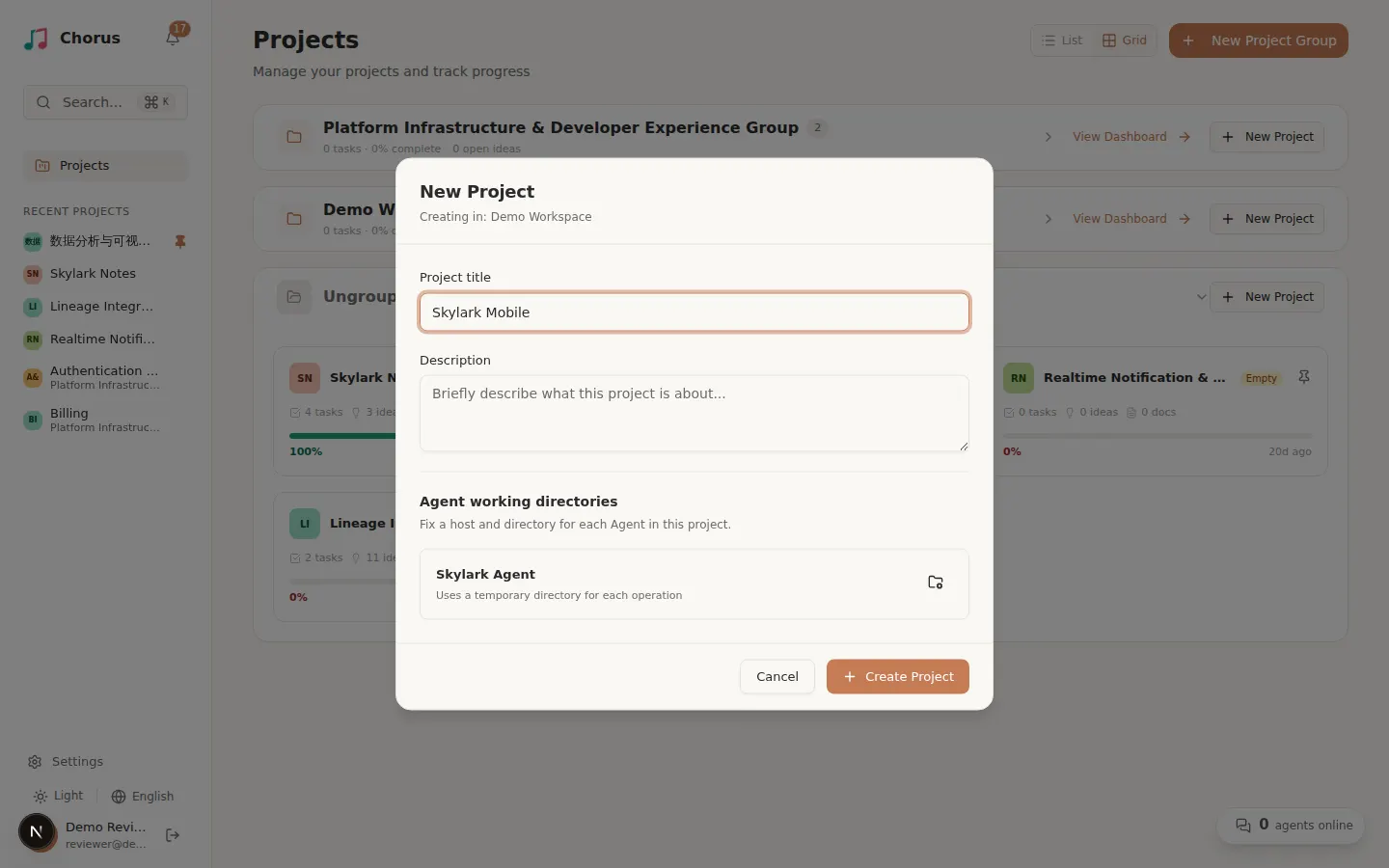
Section titled “Create a project”- On the group card, select New Project. The dialog is titled New Project and shows Creating in: group name so you know where it lands.
- Enter a Project title (for example,
Project Alpha). - Add a Description of what the project is about.
- Optionally set a working directory now in the Agent working directories section (see below); you can also leave it and set it later.
- Select Create Project.
Chorus creates the project and adds it to the group.
Fix a working directory
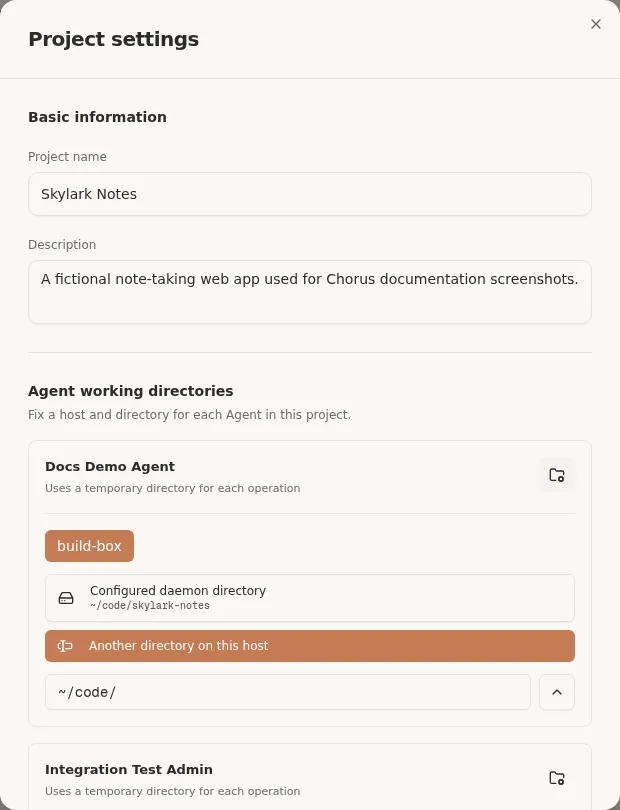
Section titled “Fix a working directory”A working directory is the folder on a host machine that a connected agent reads and writes when it works on this project. It is set per agent, not as a single project-wide path.
In the project’s Agent working directories settings you can, for each agent:
- Configure working directory — pick a host and a directory.
- Replace working directory — point the agent at a different directory.
- Clear fixed working directory — remove the fixed path.
Once a directory is fixed, the project Overview header shows a lock chip with the path for that agent. A directory only becomes selectable when its host is online; you register those hosts and directories when you connect an agent runtime.
What fixing a directory does
Section titled “What fixing a directory does”Fixing a directory anchors the project to one specific online agent and one working directory. Anchoring changes how Chorus behaves in three ways:
- The picker is suppressed. Once a project is anchored, later agent calls you start from it — creating an idea conversationally, running elaboration, dispatching a task — go straight to that agent and directory. Chorus no longer asks you to pick a directory each time; the fixed choice is used silently.
- The choice becomes a durable target. The path you fix is recorded as a concrete agent
instance — the
(agent, host, directory)triple — not just a loose string. That is the same kind of target the online-agents overview calls an agent instance, and it is what a session is pinned to. - Already-anchored work is protected. If you later replace or clear the fixed directory, only future calls follow the new setting. An idea or session that was already anchored to the previous directory keeps running there — changing the project preference never drags in-flight work to a different folder.
So the fixed directory is both a default (new work lands there without asking) and a guarantee (work that already started stays where it started).
Open the workspace
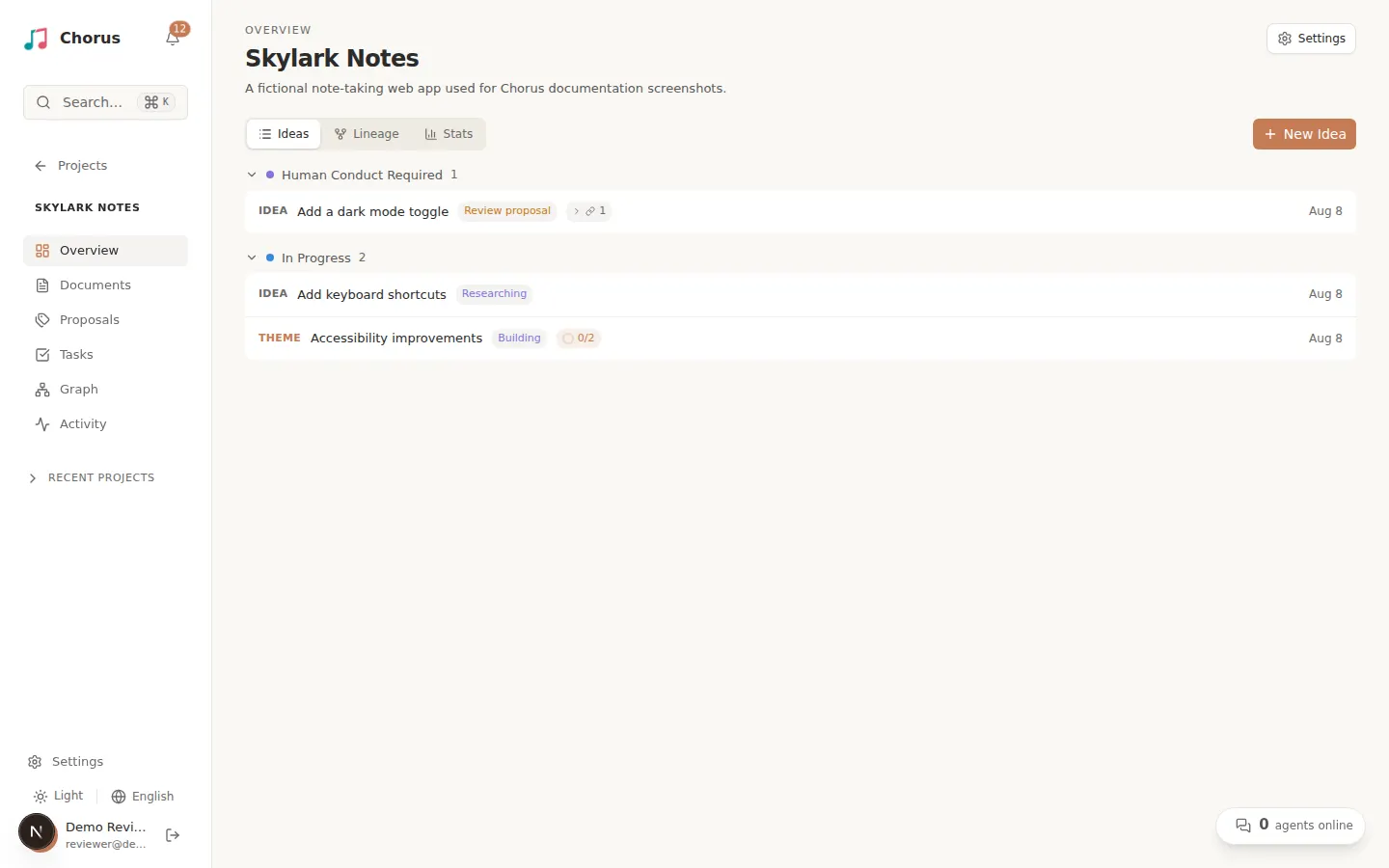
Section titled “Open the workspace”Select the project card to open its workspace at its Overview. The sidebar now shows the project’s navigation:
| Section | What it holds |
|---|---|
| Overview | The idea tracker — where you capture and follow ideas — plus the project’s working-directory chips and settings. |
| Documents | Approved documents and completion reports. |
| Proposals | Submitted and approved proposals awaiting your review. |
| Tasks | The Kanban board and dependency graph for the project’s tasks. |
| Graph | A mind-map of the project’s ideas, proposals, tasks, and documents. |
| Activity | The stream of everything that has happened in the project. |
With the workspace open, continue to Capture an idea to start the pipeline.